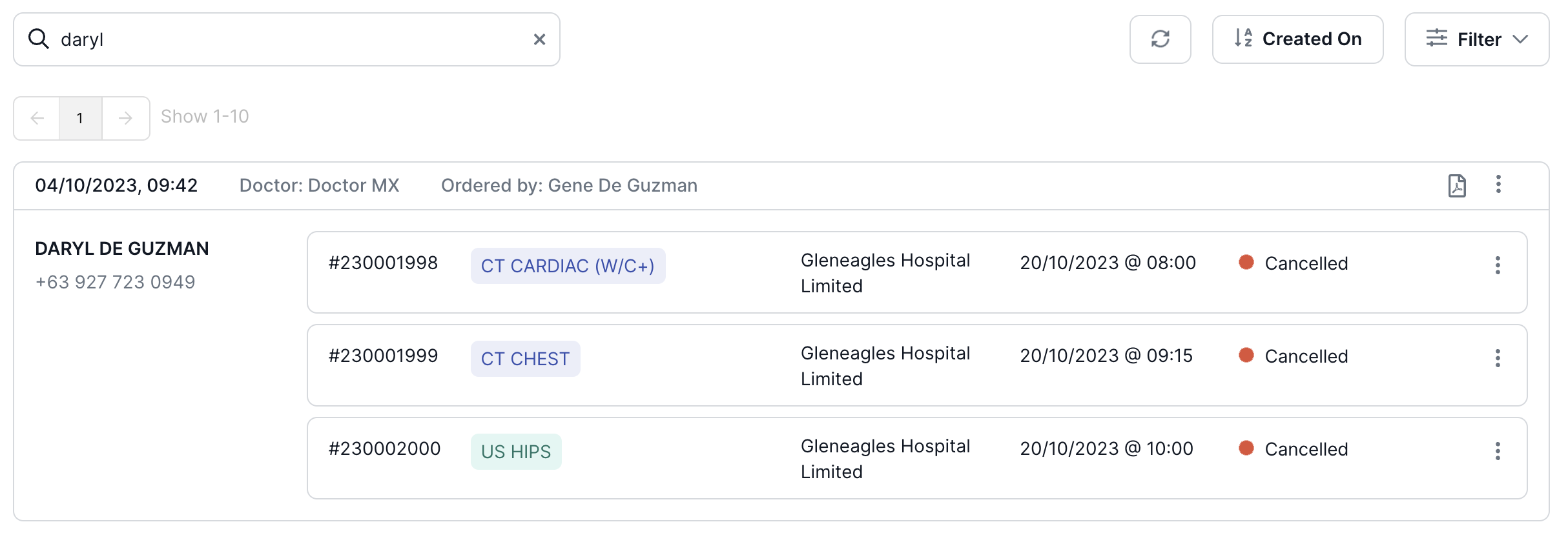
There may be instances where you will need to cancel an Exam that is already scheduled. This section details how to cancel a booking order.
Note: You can only cancel exams or orders that you have created.
Cancelling a Single Exam
Prefer to see the instructions in a Video?
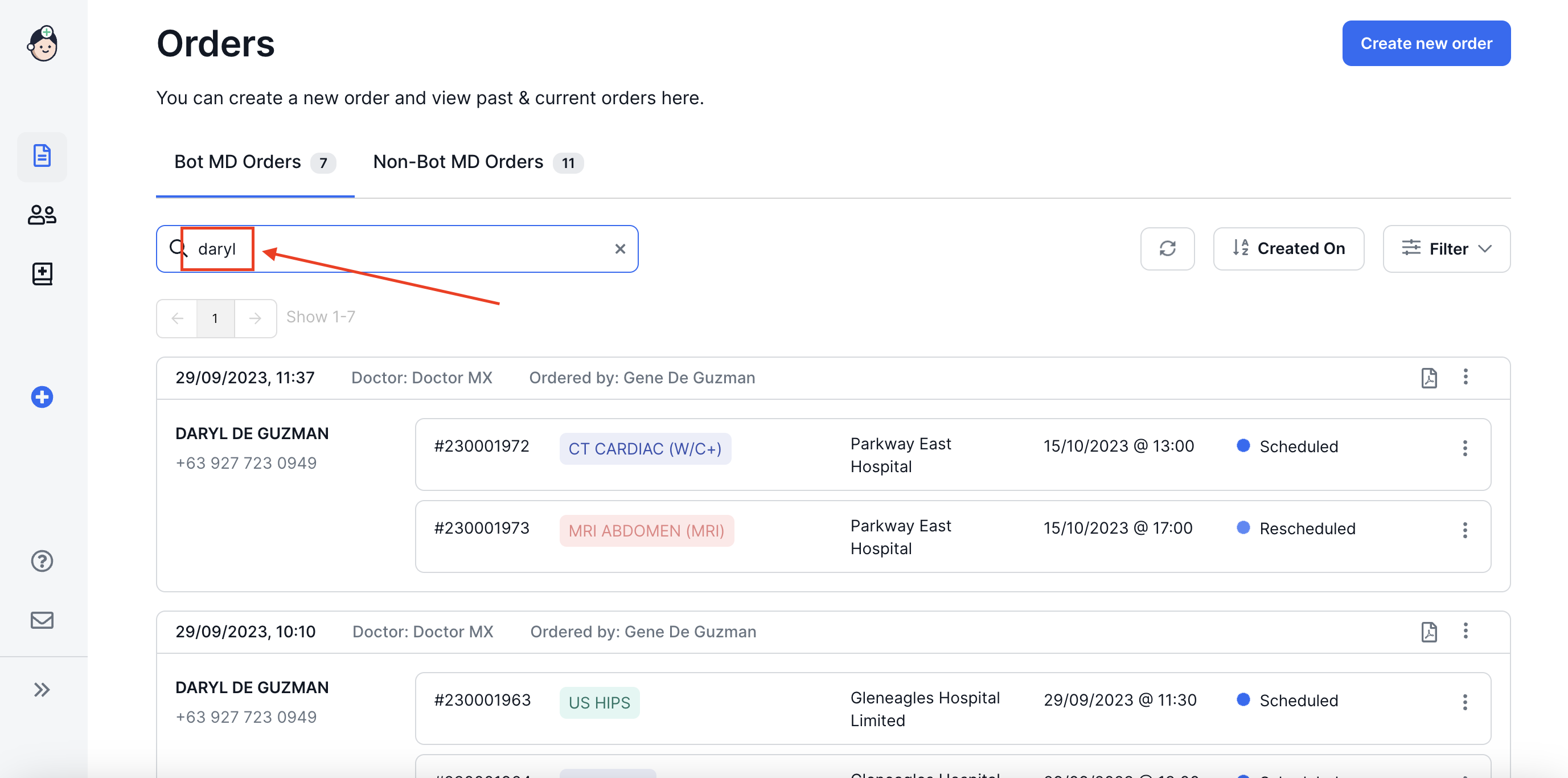
- In the Orders Page, search for your patient by typing her/his name or accession number in the search field.
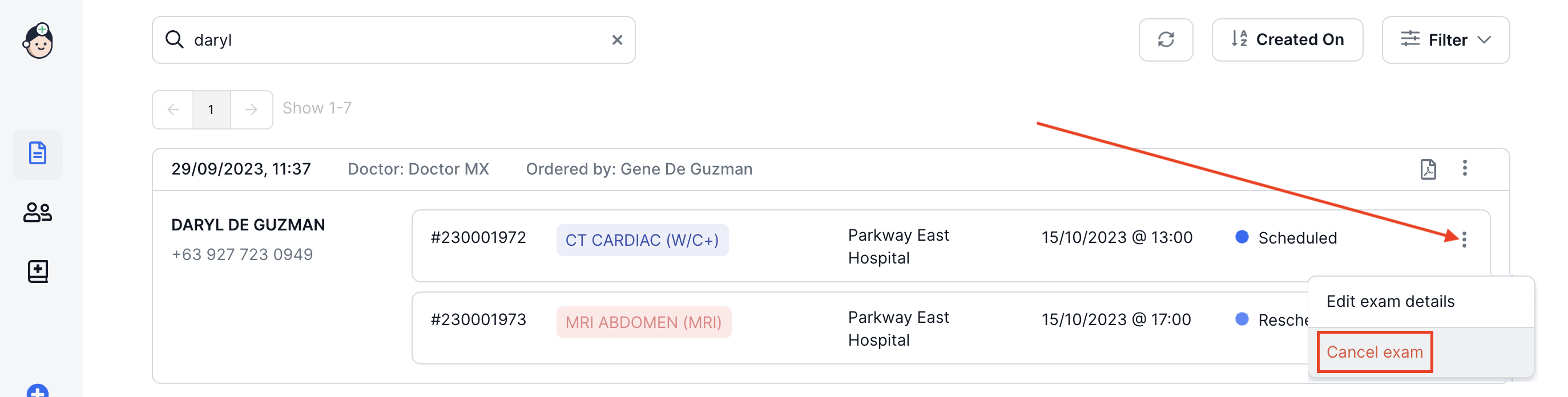
- To cancel a single exam, locate the exam that you want to cancel then click on the More Actions icon and select Cancel exam.
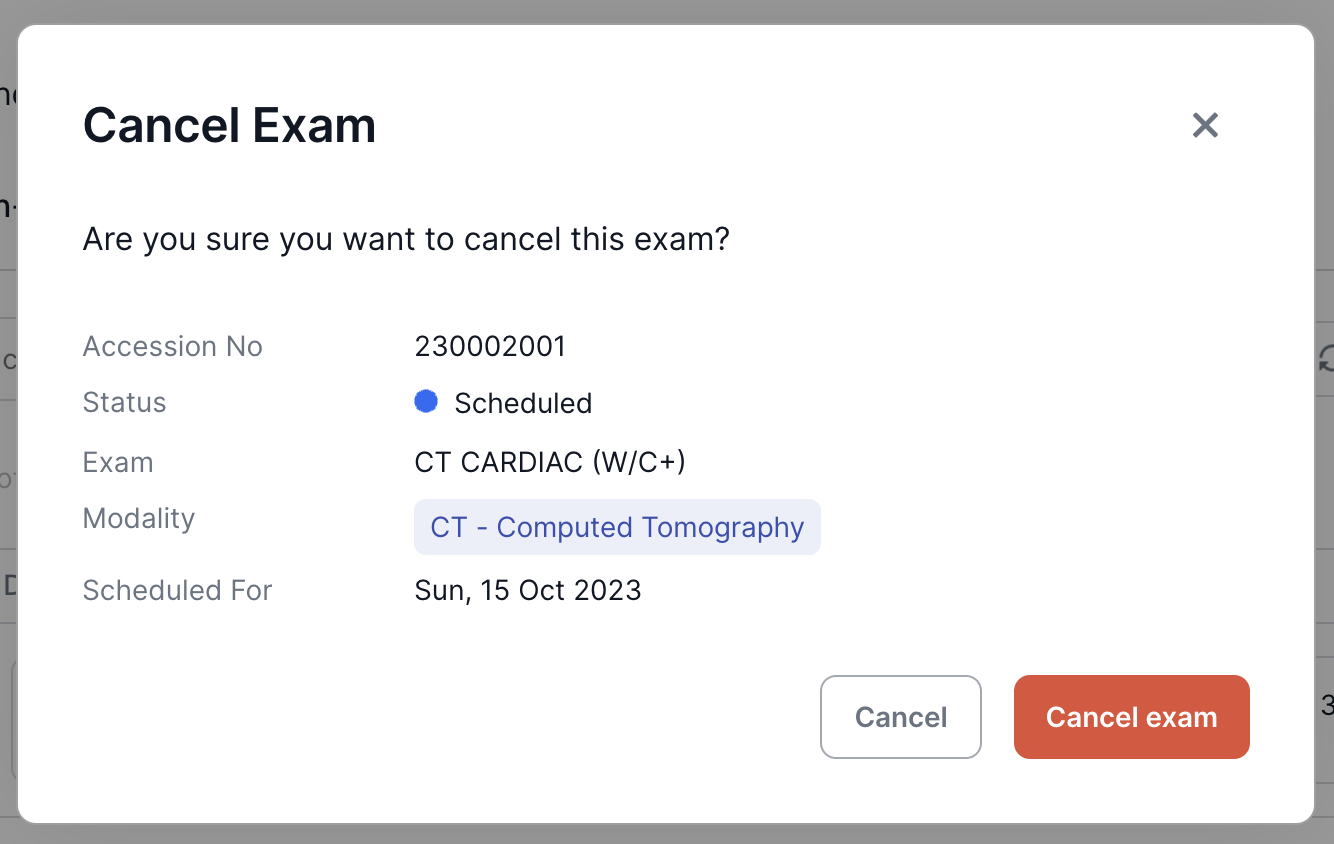
- A pop up message will appear asking if you want to cancel the selected exam - click on Cancel exam to proceed.
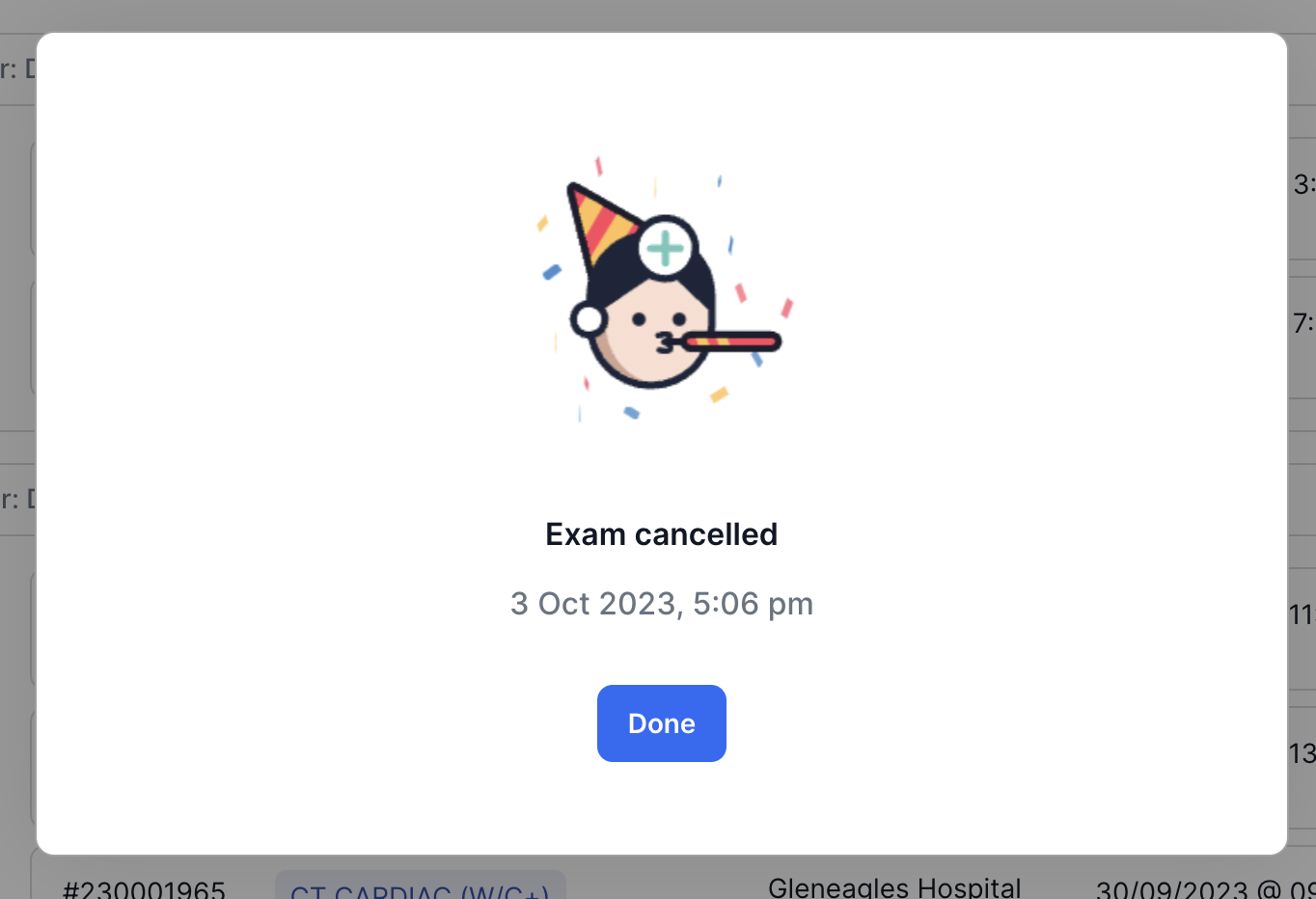
- A message will appear confirming that your exam booking has been cancelled. Click on Done to go back to the orders page.
- The exam should now appear as "Cancelled" in the orders list.

Cancelling All Exams in a Booking Order
Prefer to see the instructions in a Video?
- n the Orders Page, search for your patient by typing her/his name in the search field.
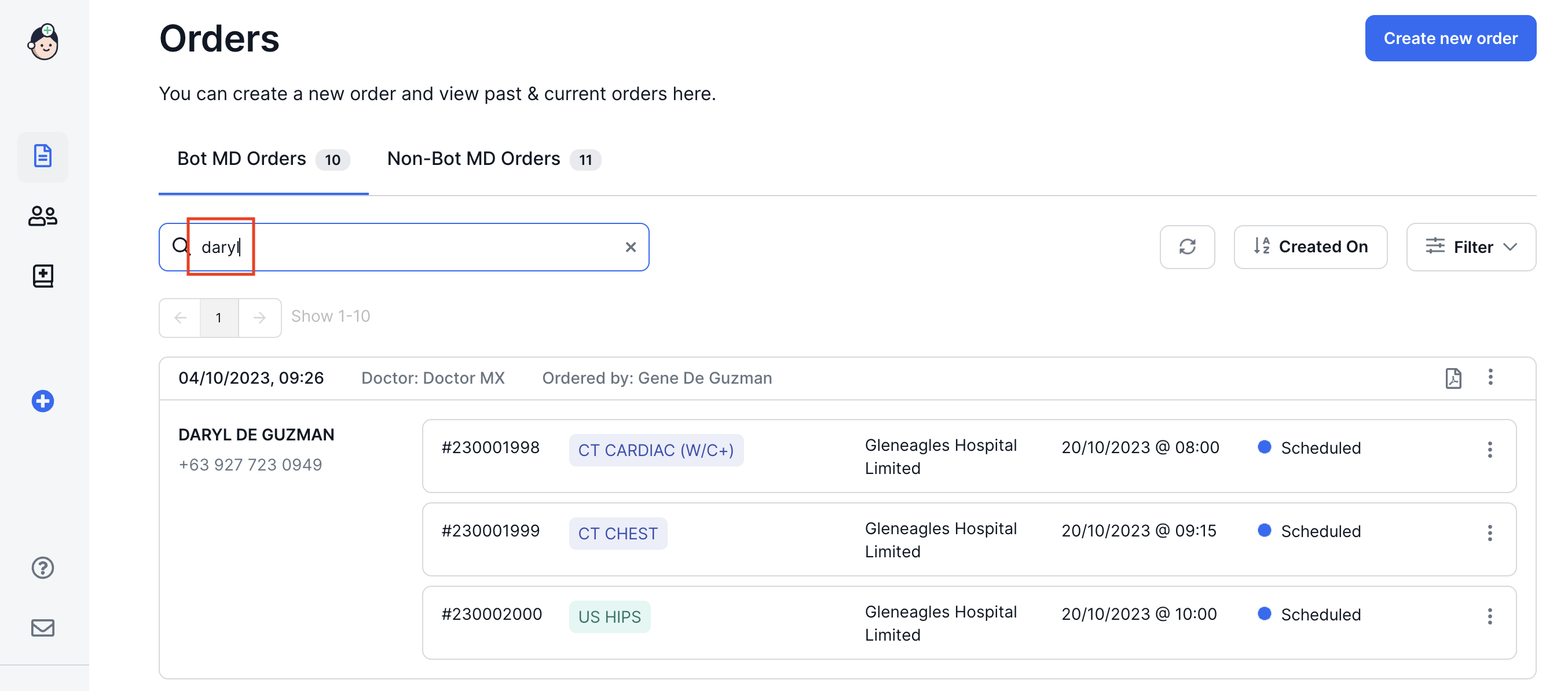
- Locate the booking with the exams that you want to cancel then click on the More Actions icon and select Cancel order to cancel all the exams in that booking order.
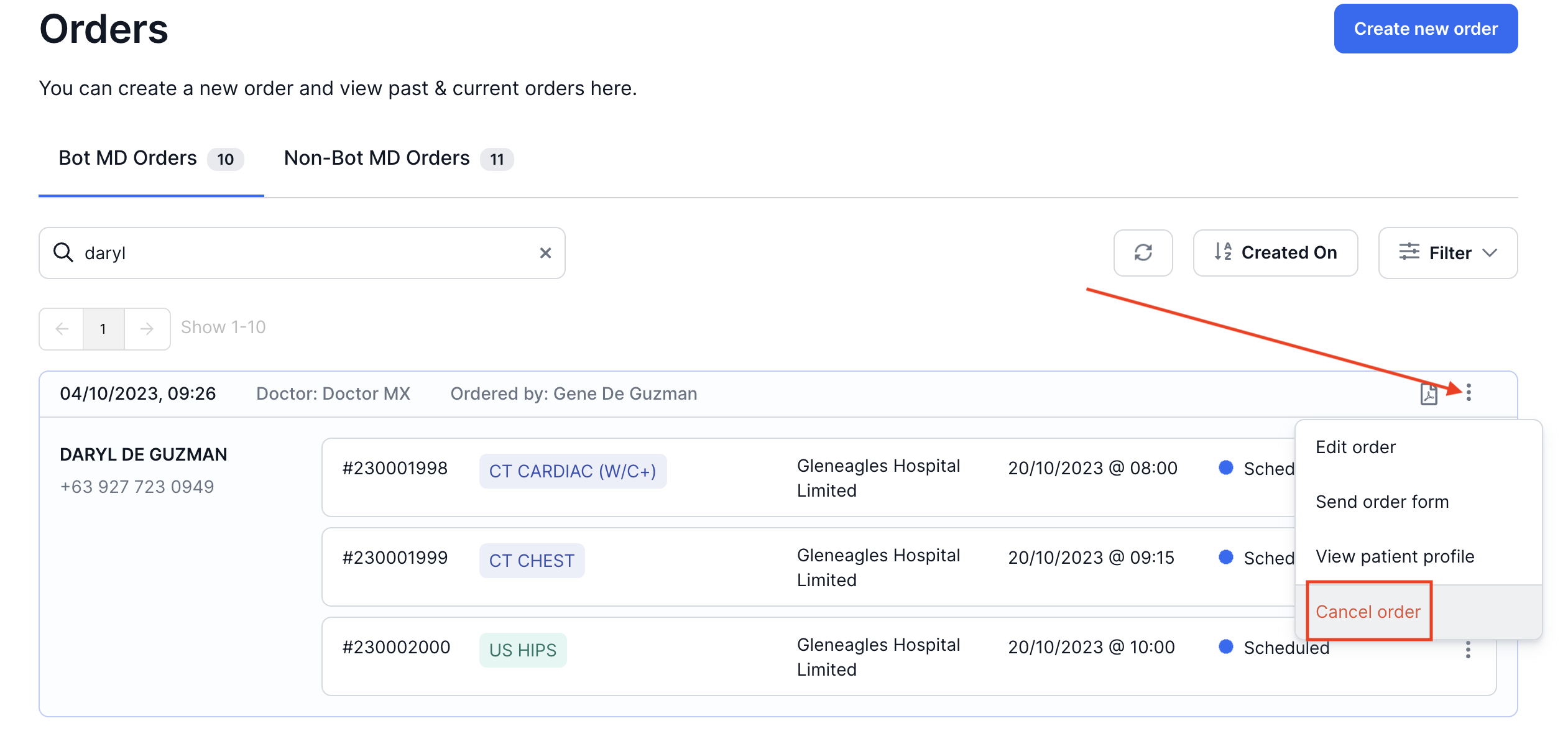
- A pop up message will appear asking if you want to cancel the order - click on Cancel order to proceed.
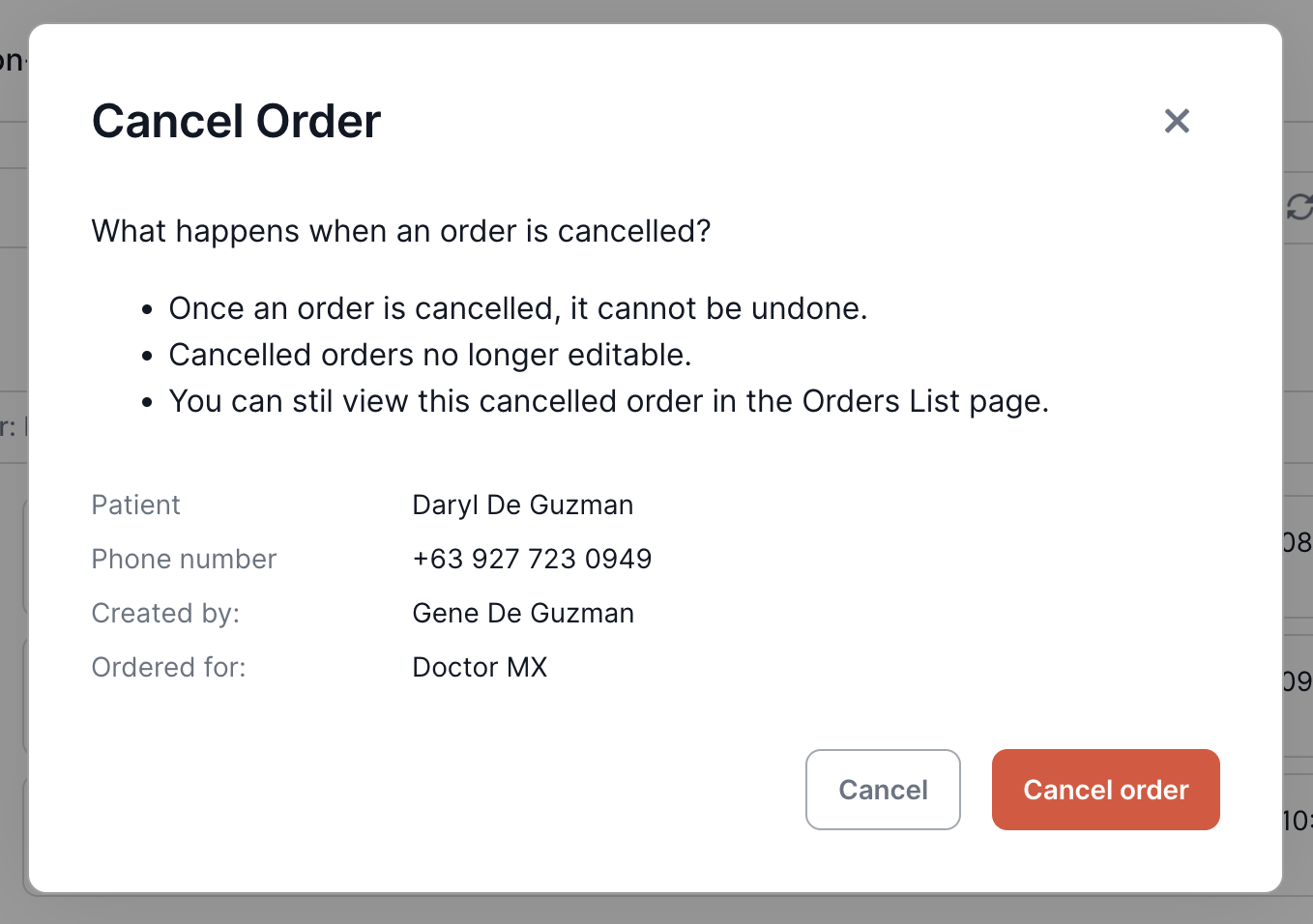
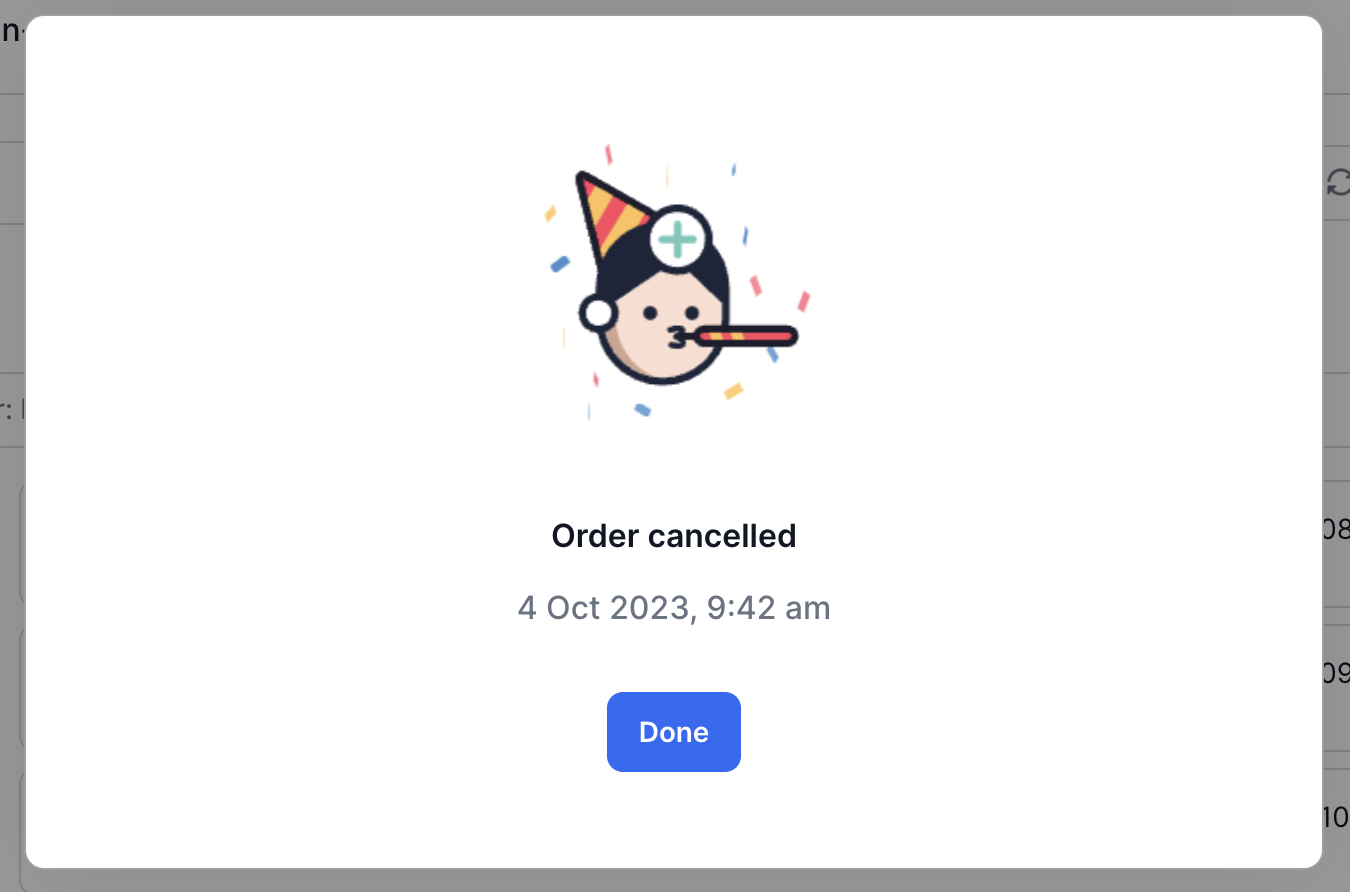
- A message will appear confirming that your booking order has been cancelled. Click on Done to go back to the orders page.
- All exams in that booking order should now appear as "Cancelled" in the orders list.