Prefer to see the instructions in a Video?
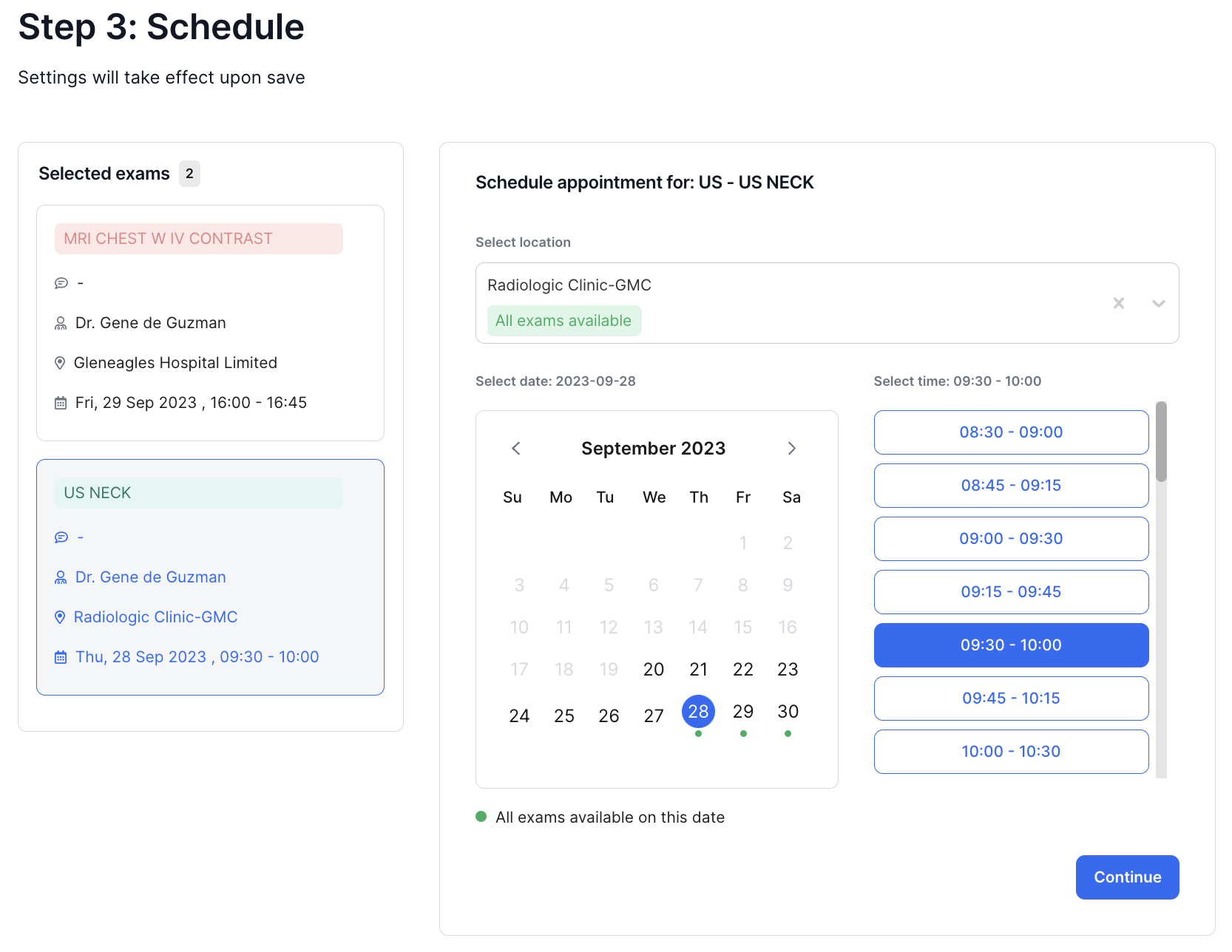
When booking appointment slots, you will need to select a Date and Time for each exam. The screen below is divided into 2 sections:
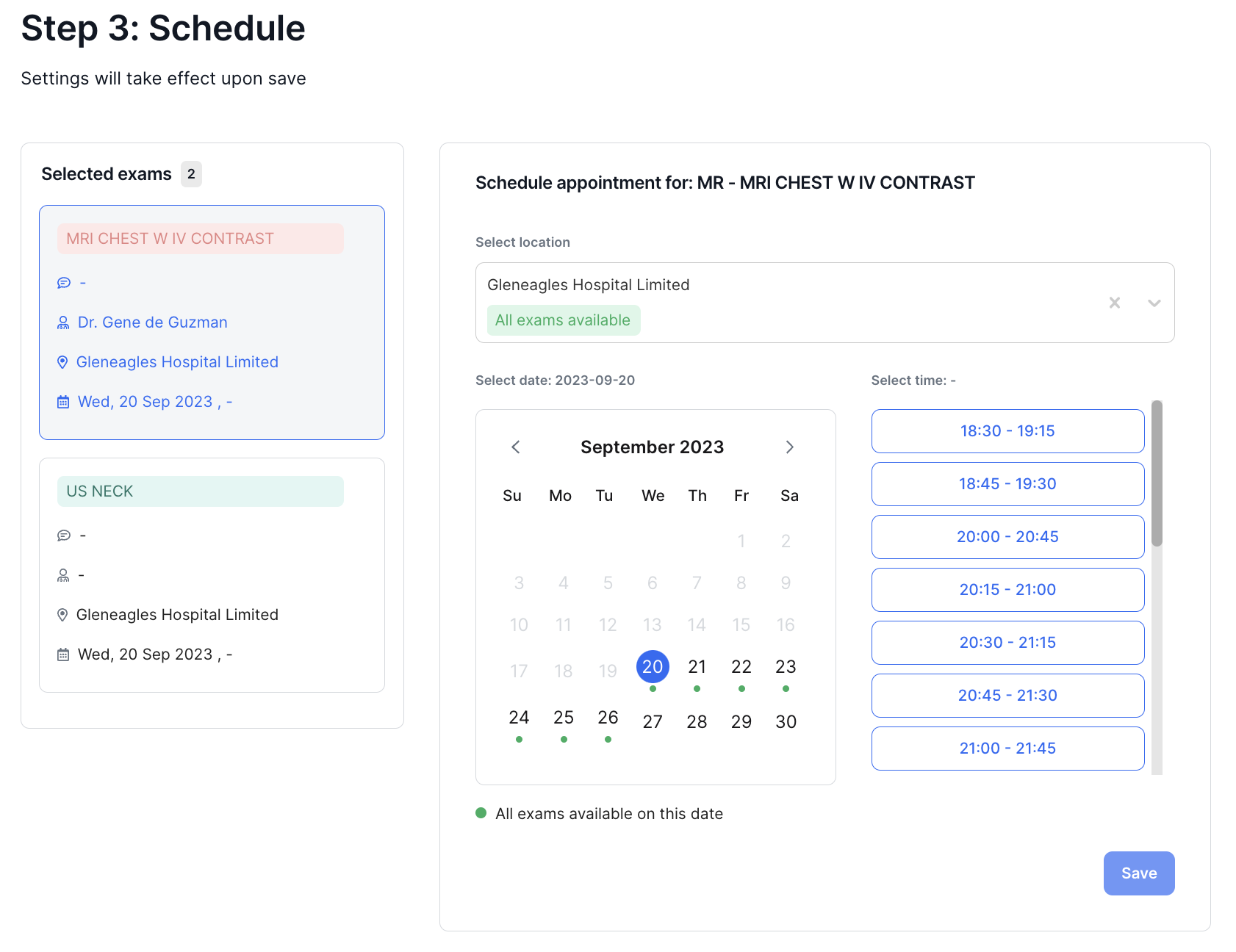
Left - List of Selected Exams
The left section displays the exams that are going to be scheduled. The exam currently being scheduled is highlighted in grey.
Right - Selections for Location, Exam Date and Time
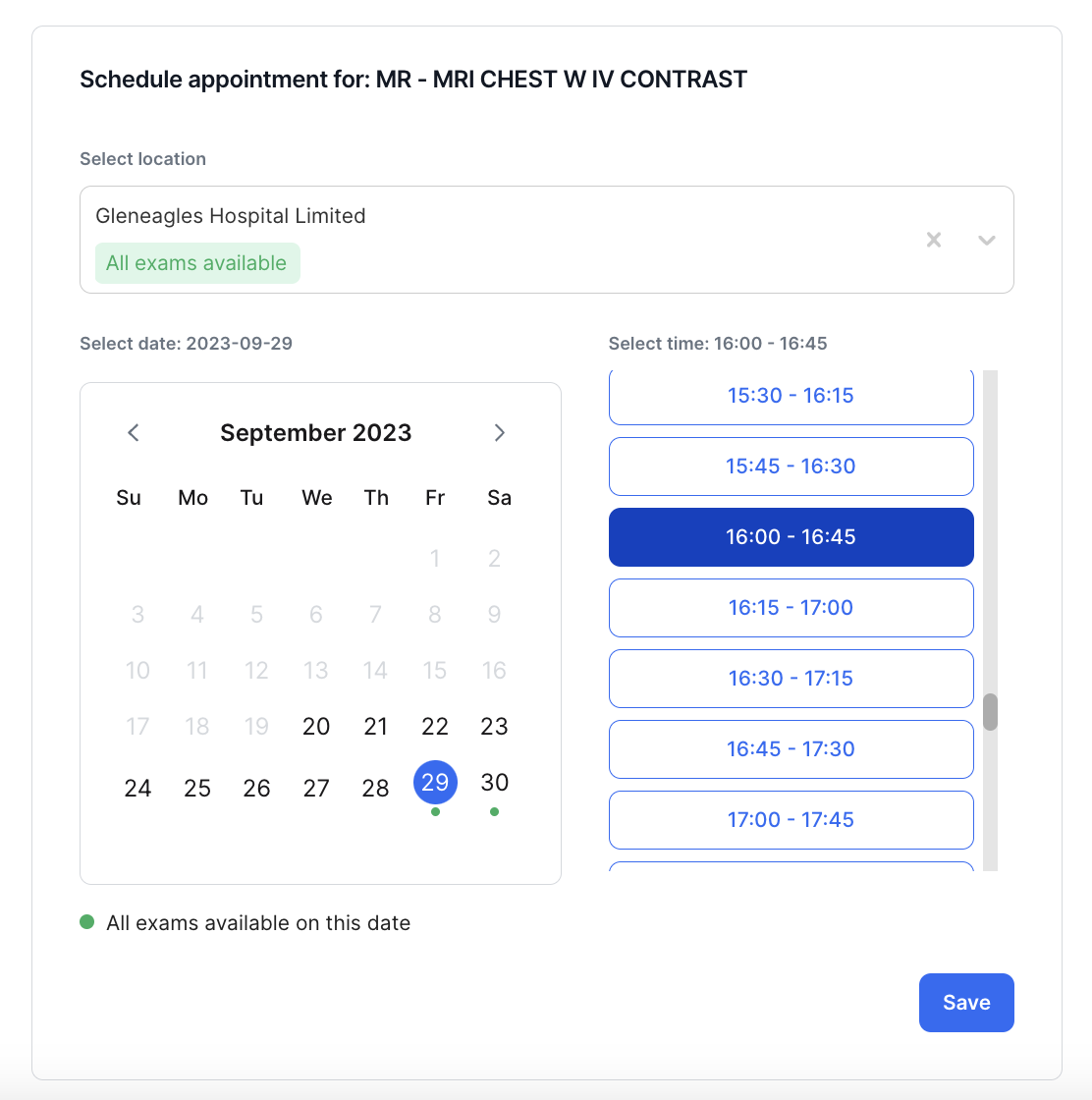
The section on the right shows a list of locations where the selected exam is available. Note that if you have selected multiple exams the list indicates if all selected exams are available in that particular location. (For more information on selecting locations, please see Selecting Exam Locations)
In addition the section also displays a Calendar which you will use to select dates for each exam, and different time slots to choose from.
Booking Appointment Slots
1. Select an exam from the left section of the screen. The exam is then highlighted in grey.
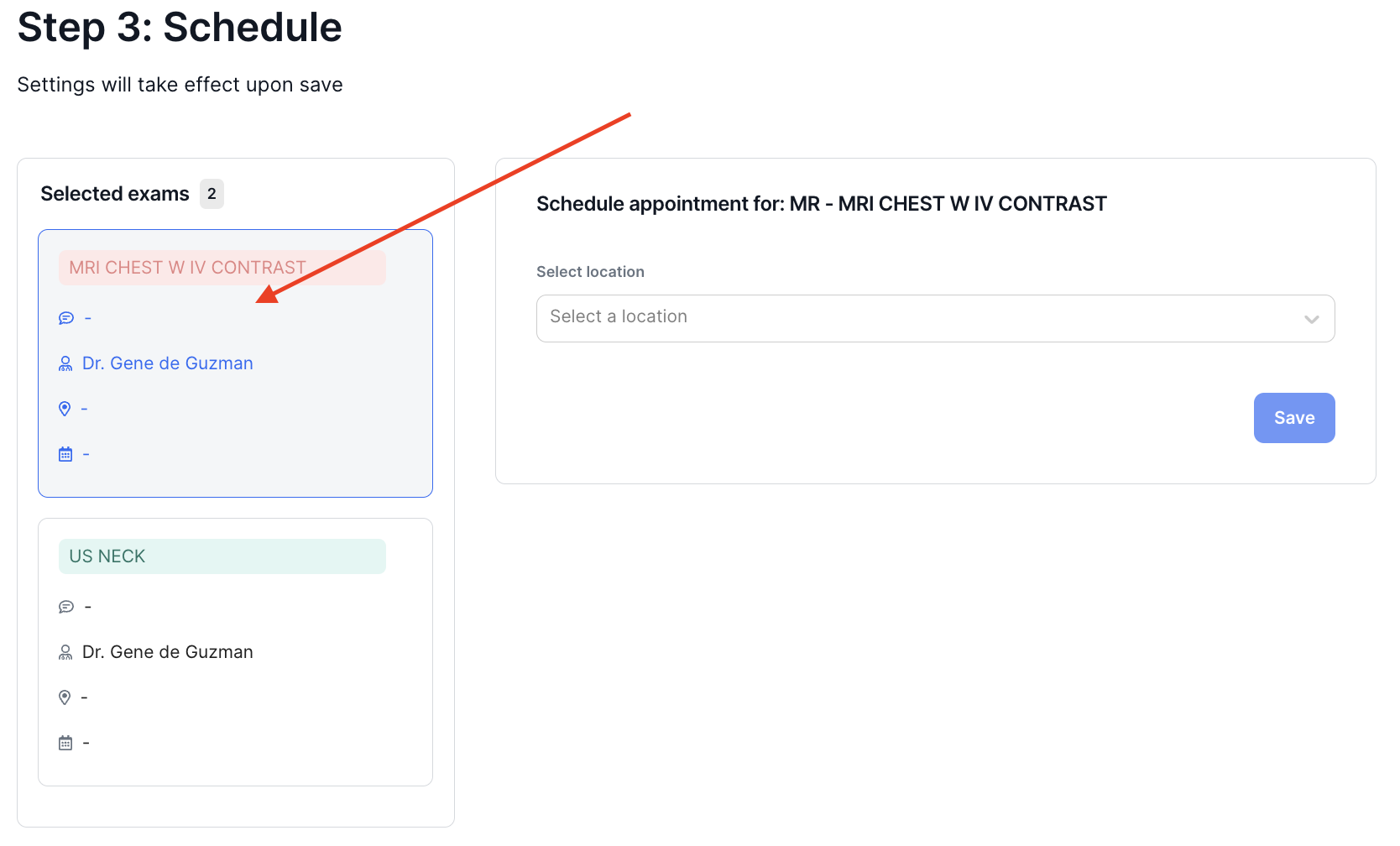
- Select a location where the patient will have the exam. Note that if you have selected multiple exams the list indicates if all selected exams are available in that particular location.
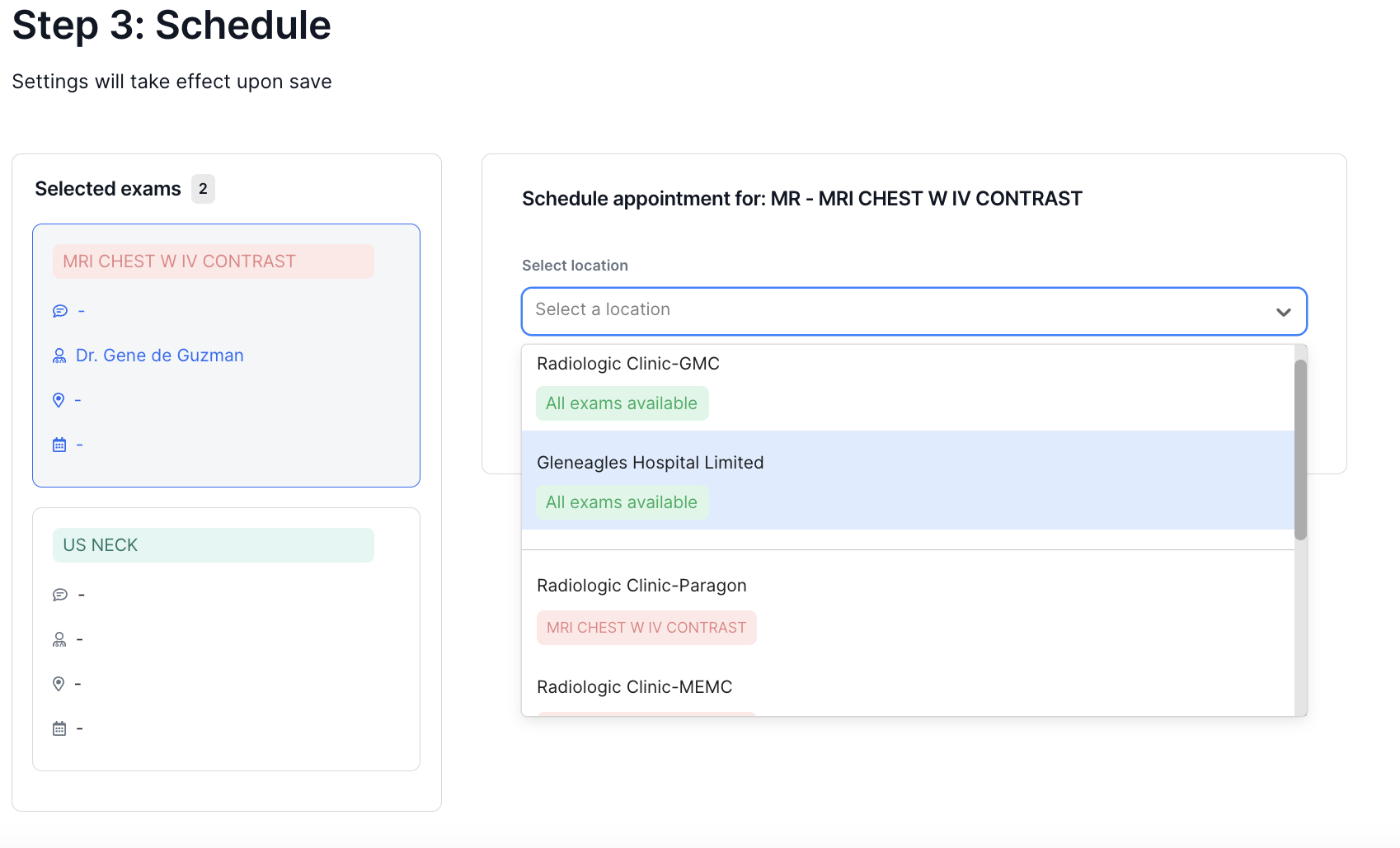
3. Select a date from the calendar, then select an available time slot from the right. Click on Save to set the time schedule.
Note : The system provides time slots in various intervals and may slightly defer from the actual available time slots in the selected location. Please call Parkway to confirm.
4. After clicking on Save, you will see the list of exams in the left updated with the date and time scheduled. To continue scheduling the next exam, select a date from the calendar, then select an available time slot from the right. Click on Save to set the time schedule.