Prefer to see the instructions in a Video?
There may be instances where you will need to make changes to an Exam that is already scheduled. This section covers various use cases where exam details may be edited.
- In the Orders Page, search for your patient by typing her/his name in the search field.
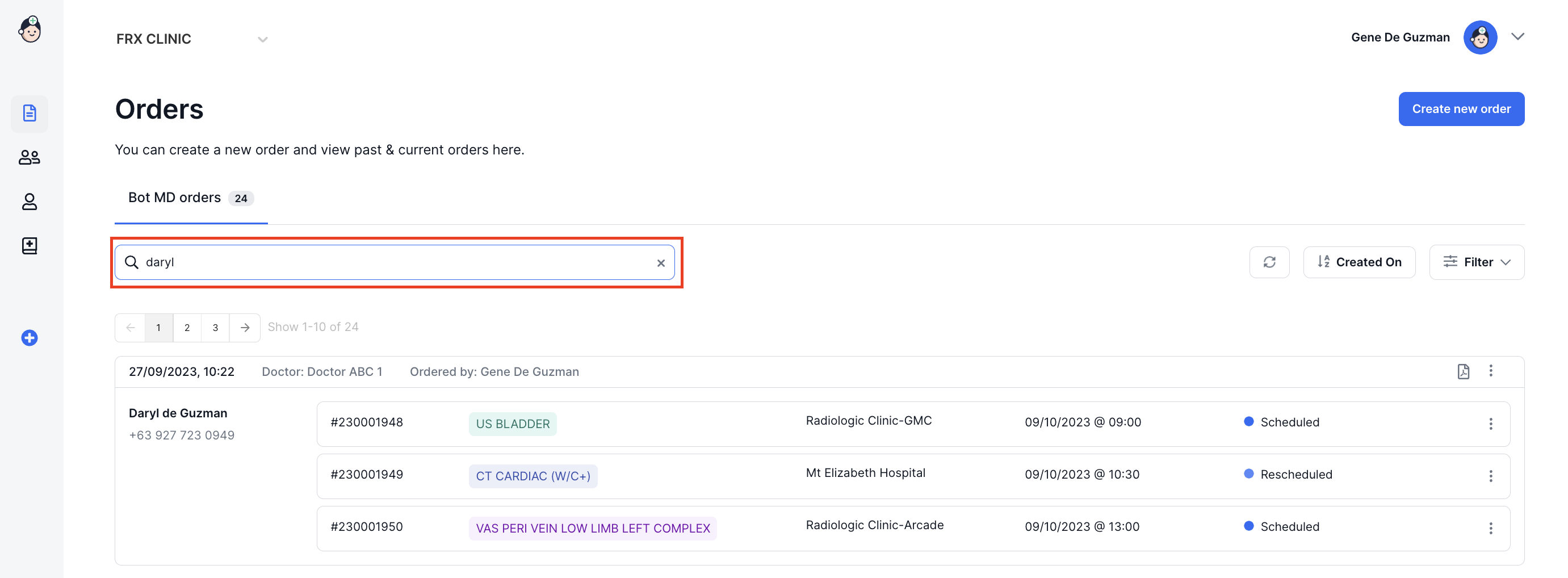
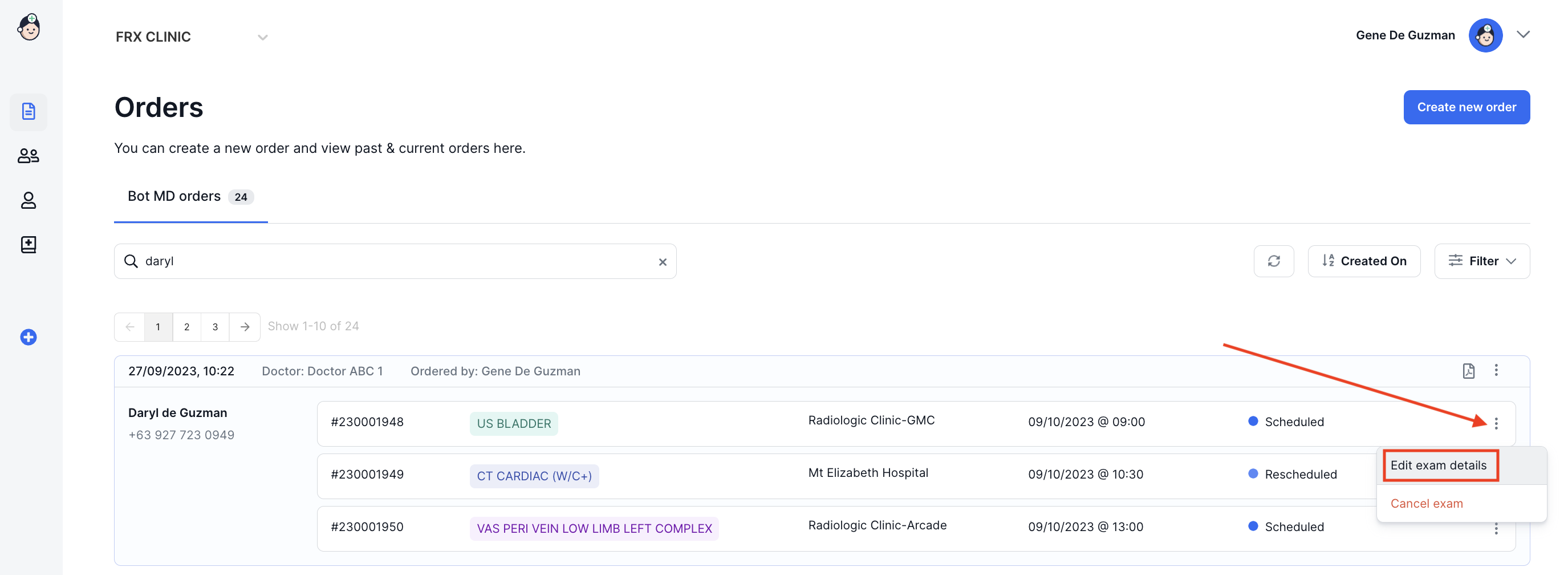
- Locate the exam that you want to modify then click on the More Actions icon and select Edit exam details.
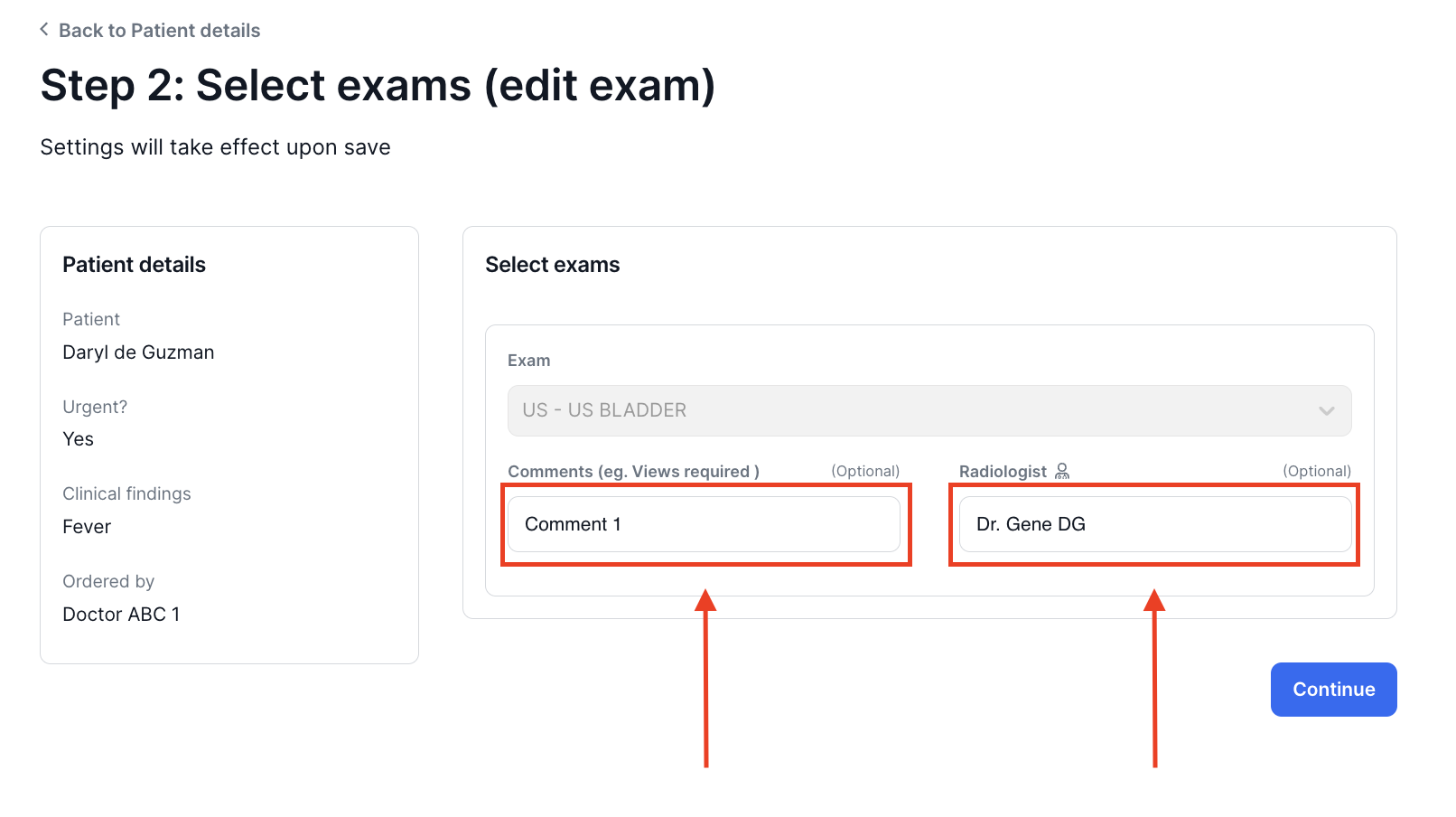
- For Step 2: Select Exams - only the Comments and Radiologist may be edited. Fill in the relevant field with the updated information then click on Continue.
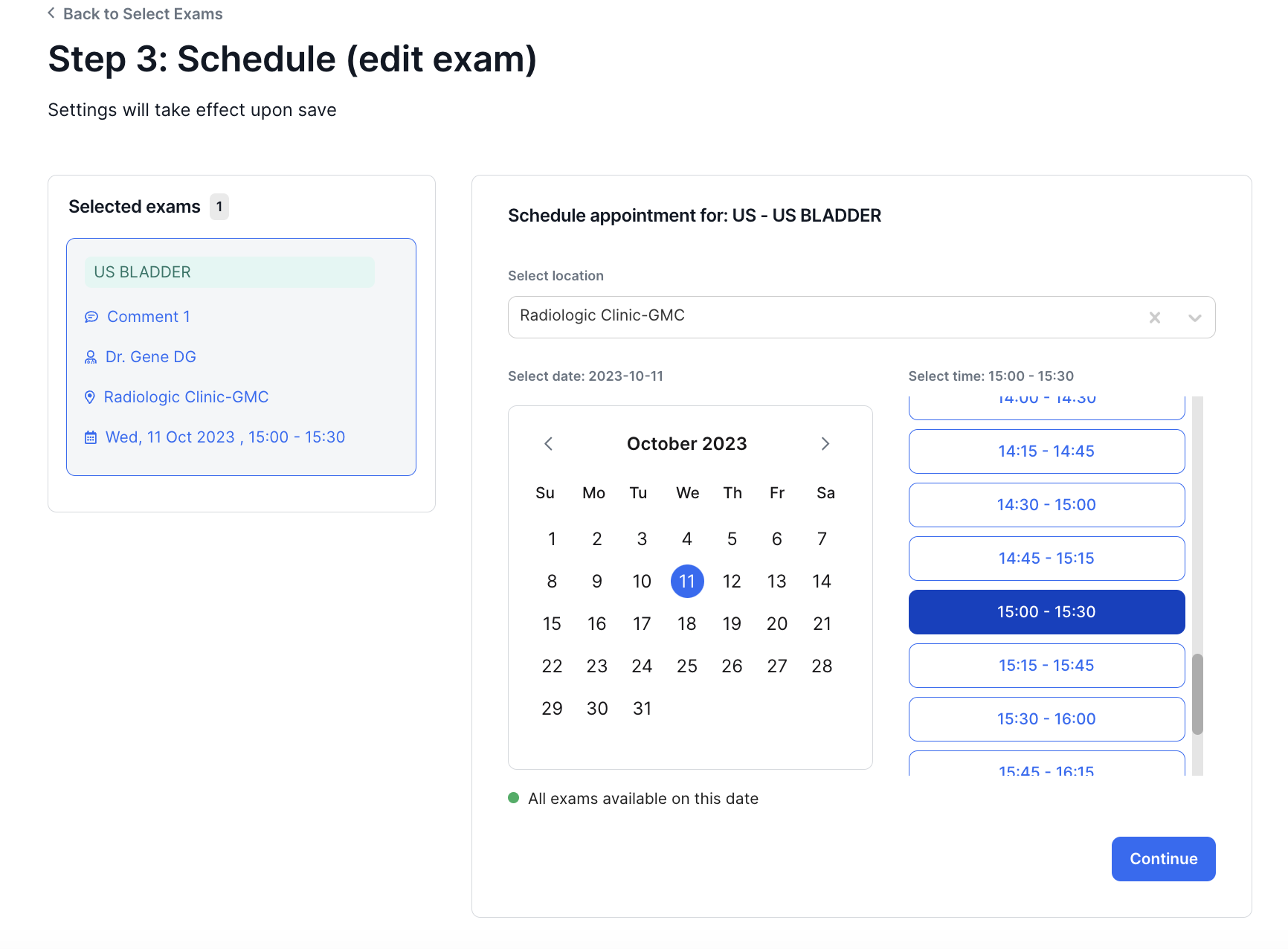
- For Step 3: Schedule - you may change the exam location and exam date & time. To change the exam location simply select a location from the drop down list. To change the exam date & time, choose a new date and time from the calendar and time selections then click on Continue.
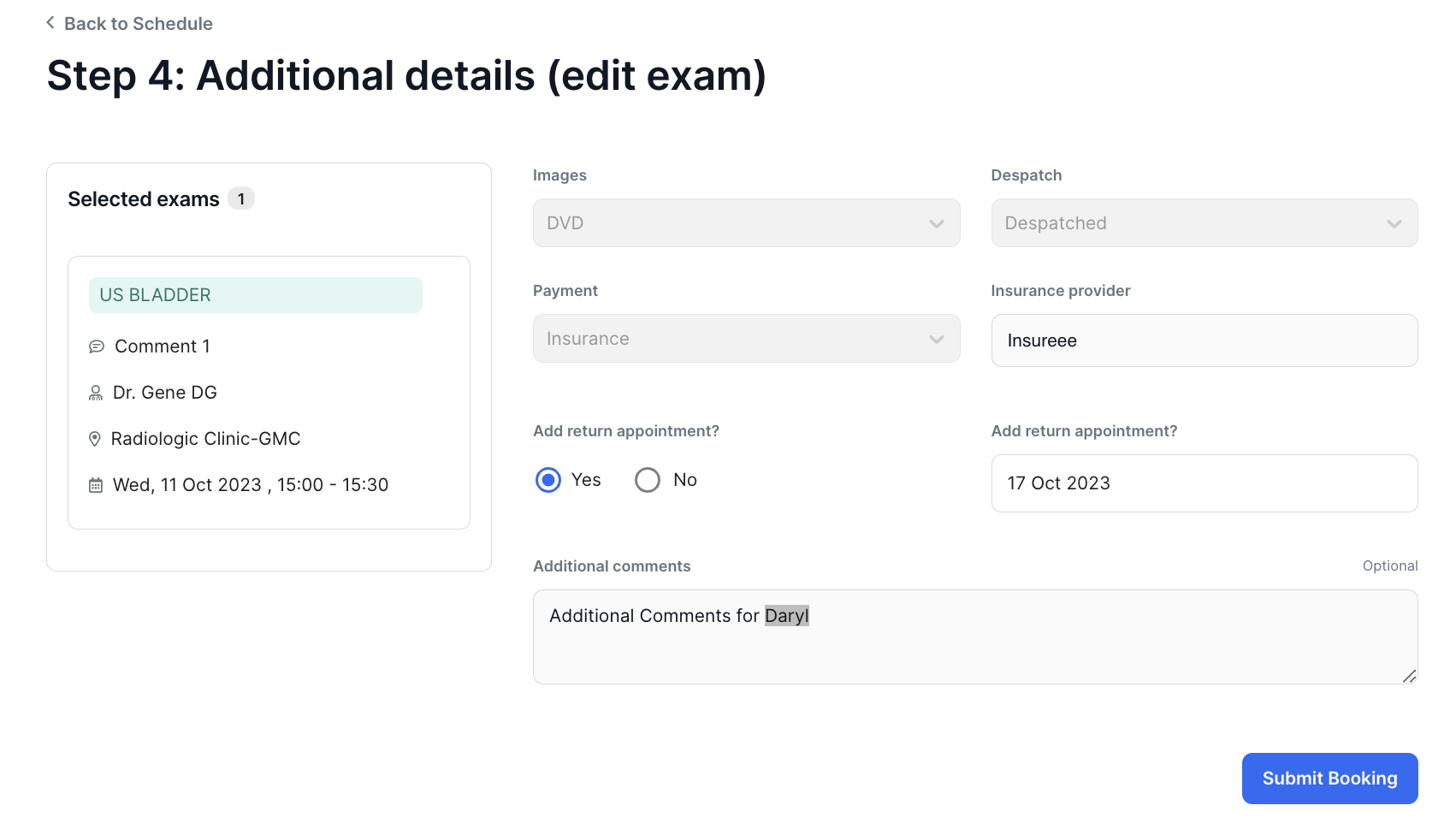
- For Step 4: Additional Details - you may modify the Return appointment and Additional comments. If you are modifying a return appointment, click on Yes or No and select a date from the calendar (if necessary). The new details selected appear on the left window. For any additional comments, simply type them in the field.
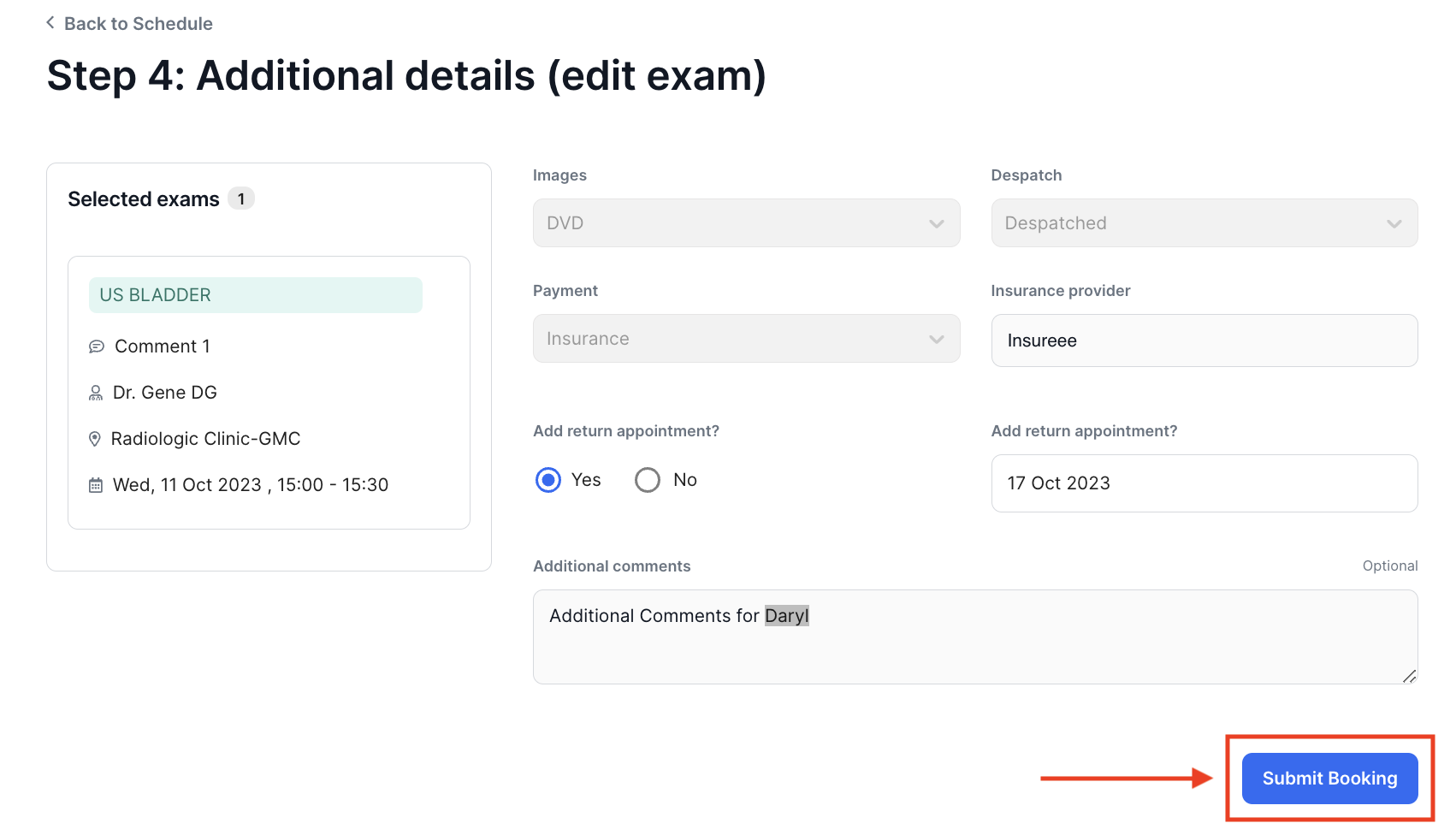
- Finally, click on Submit Booking to save your booking changes.
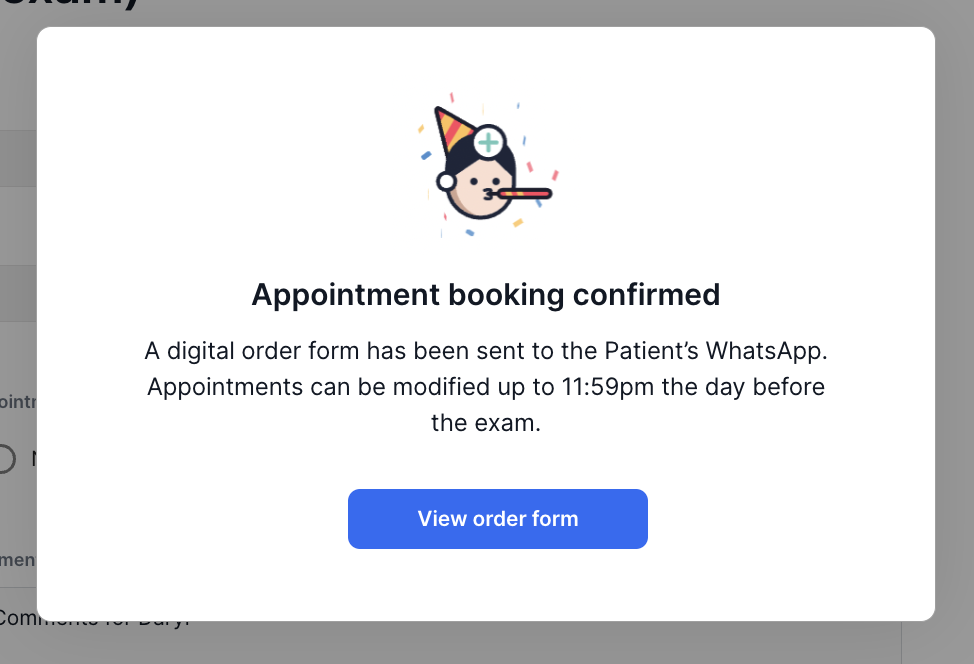
- A pop-up message will appear indicating that your order has been successfully modified. Click on View order form to see your updated booking.
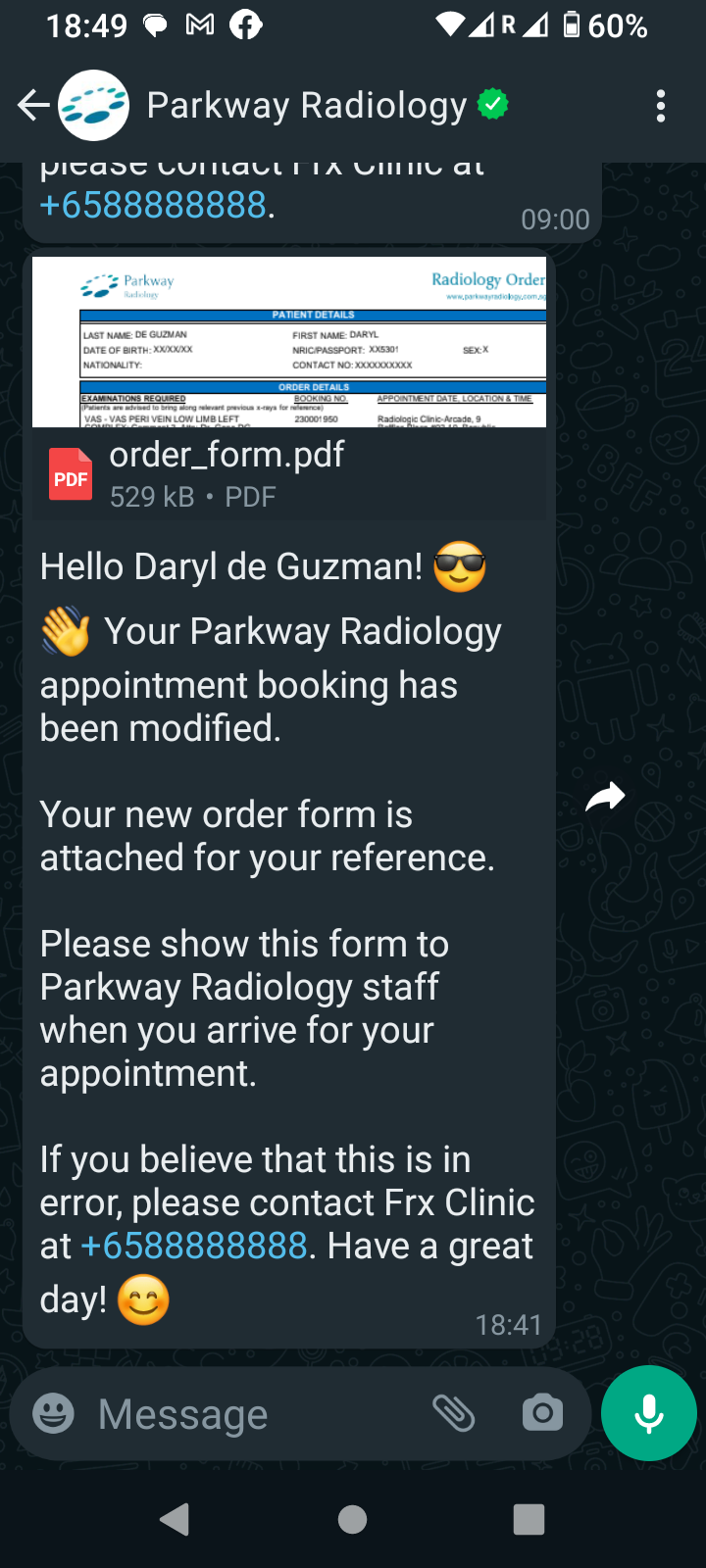
- Your updated Order form should display the updated details as modified. Your patient will also receive the updated Order form with a message via WhatsApp informing them of the modification.