The Dashboard
After having successfully logged in, you will be directed to your Dashboard.
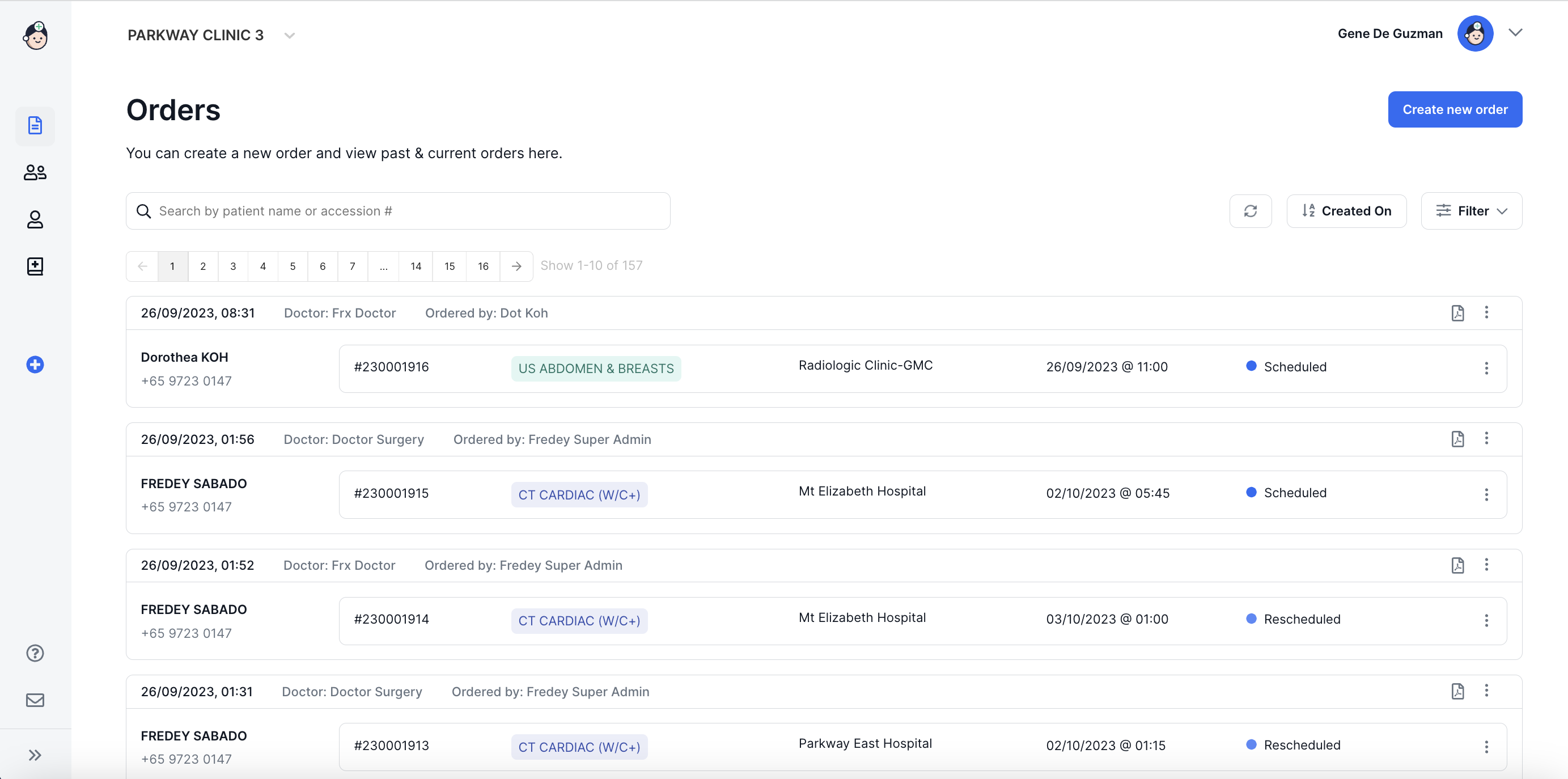
Upon successfully logging in you will be taken to the Orders Page in your Dashboard. Here you will find patients with existing orders listed with the following details per column:
- Patient's Name & Mobile Number
- Order Number
- Exam Names - these will appear in separate rows if the patient has more than one exam ordered
-

- Exam Location
- Exam Date & Time
- Booking Status
⚡️Tip
Have a long list of Patients? You can use the search field to search for a patient by Name or Acession Number.
Order Details

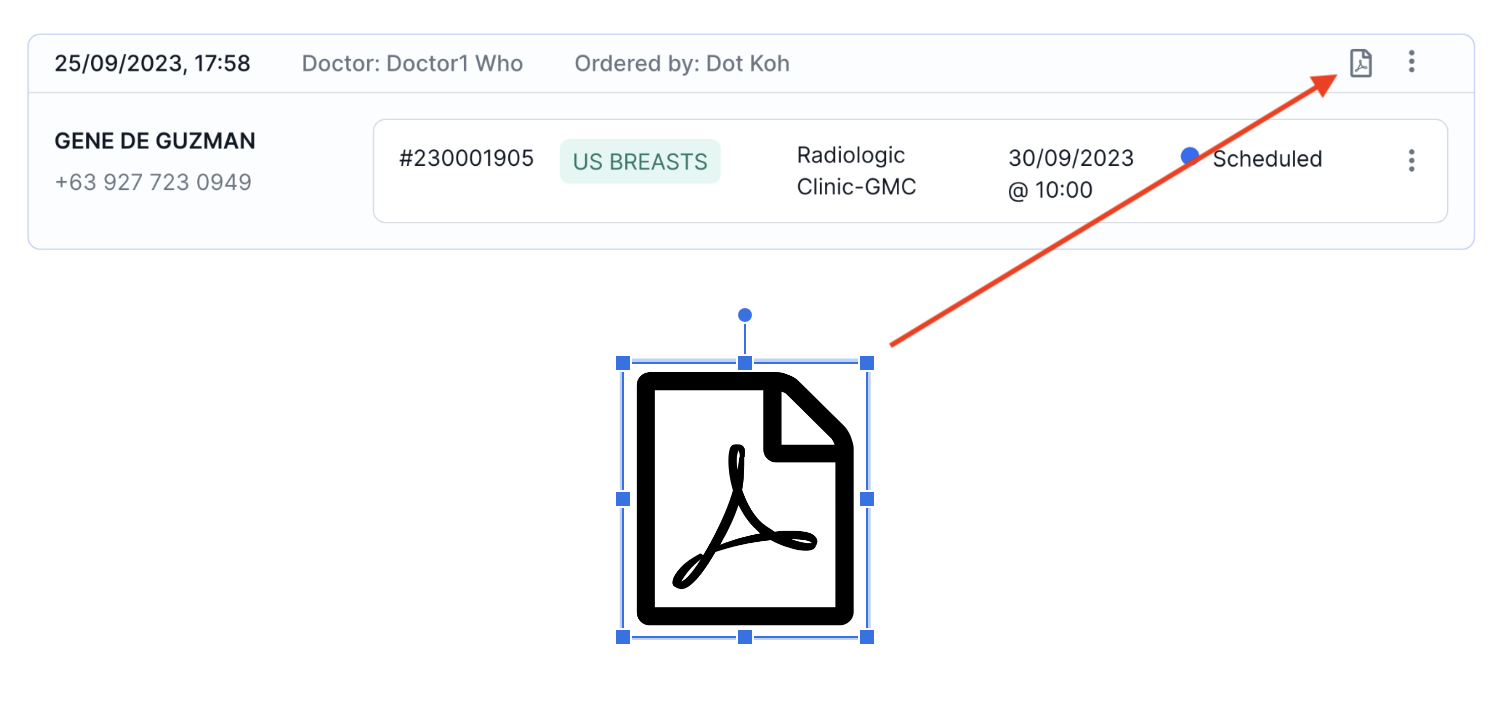
- The Order Details include the Order Date & Time, The Doctor in Charge, Ordered By (name of Doctor or Clinical Admin who created the order), and a copy of the Radiology Order (represented by an icon):
Actions Menu
The Actions Menu is located on the right side of the Order Details row, just beside the Radiology Order Icon:
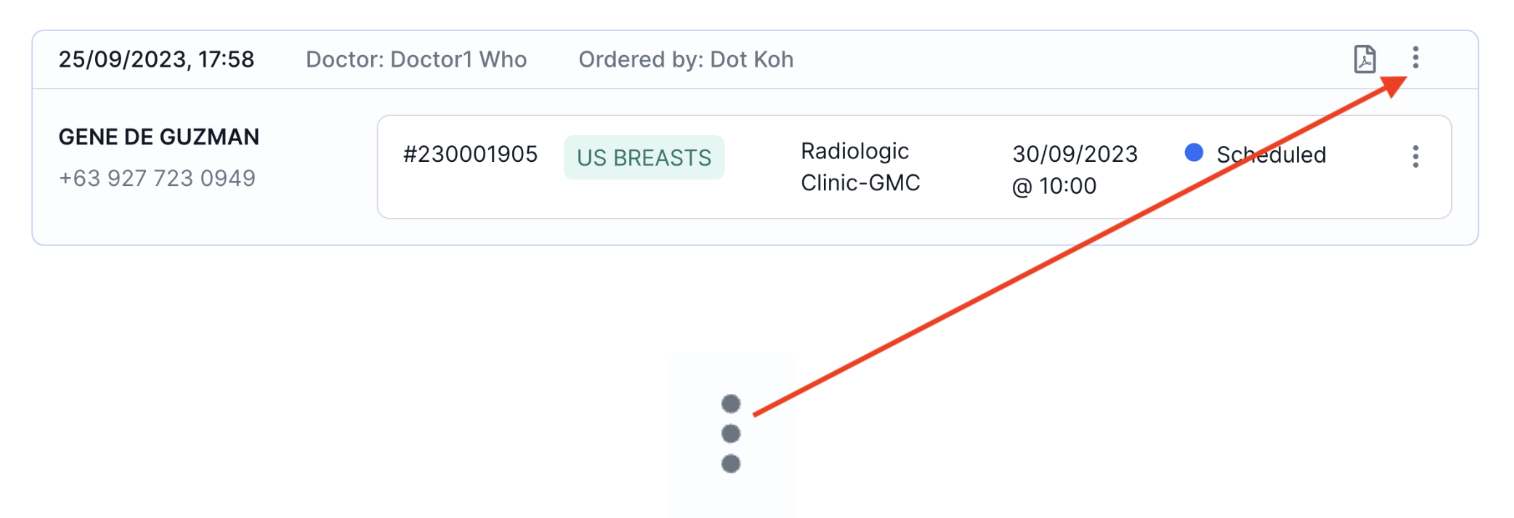
Clicking on More Actions brings up the following options:
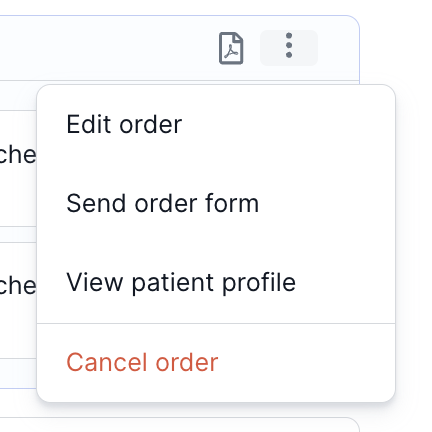
Send order form - click to send an Appointment Confirmation message with a copy of the order form to your patient via WhatsApp.
View Patient Profile - Click to load your patient's profile page.
Cancel order - Click to cancel all orders currently booked for this patient
⚡️Tip
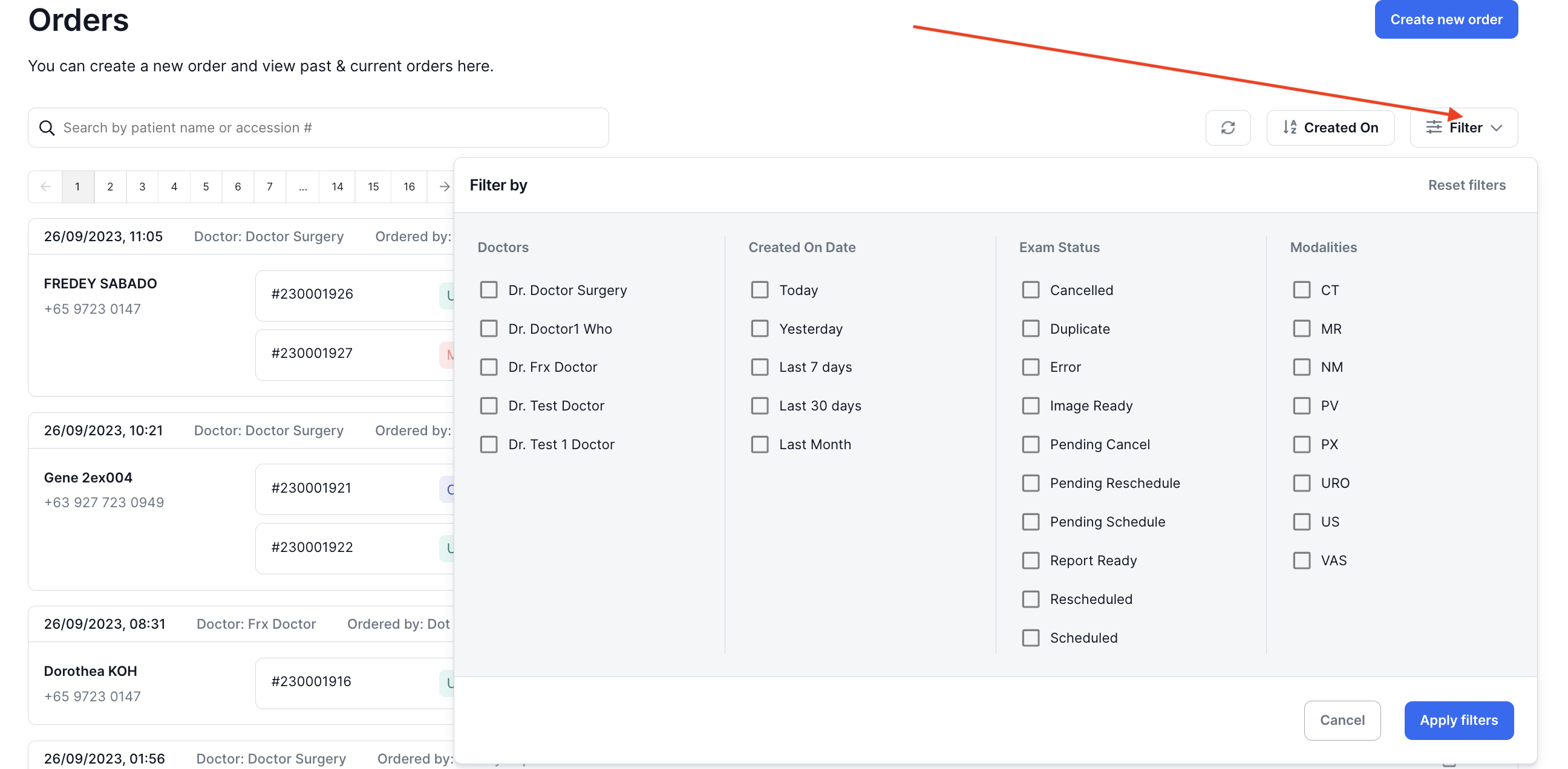
You can use filters to change the list of exams displayed by Doctor, Creation Date, Exam Status or Modalities.