Instructions for iOS Users
- Tap on the Settings icon in the Bot MD chat header to open the navigation drawer.
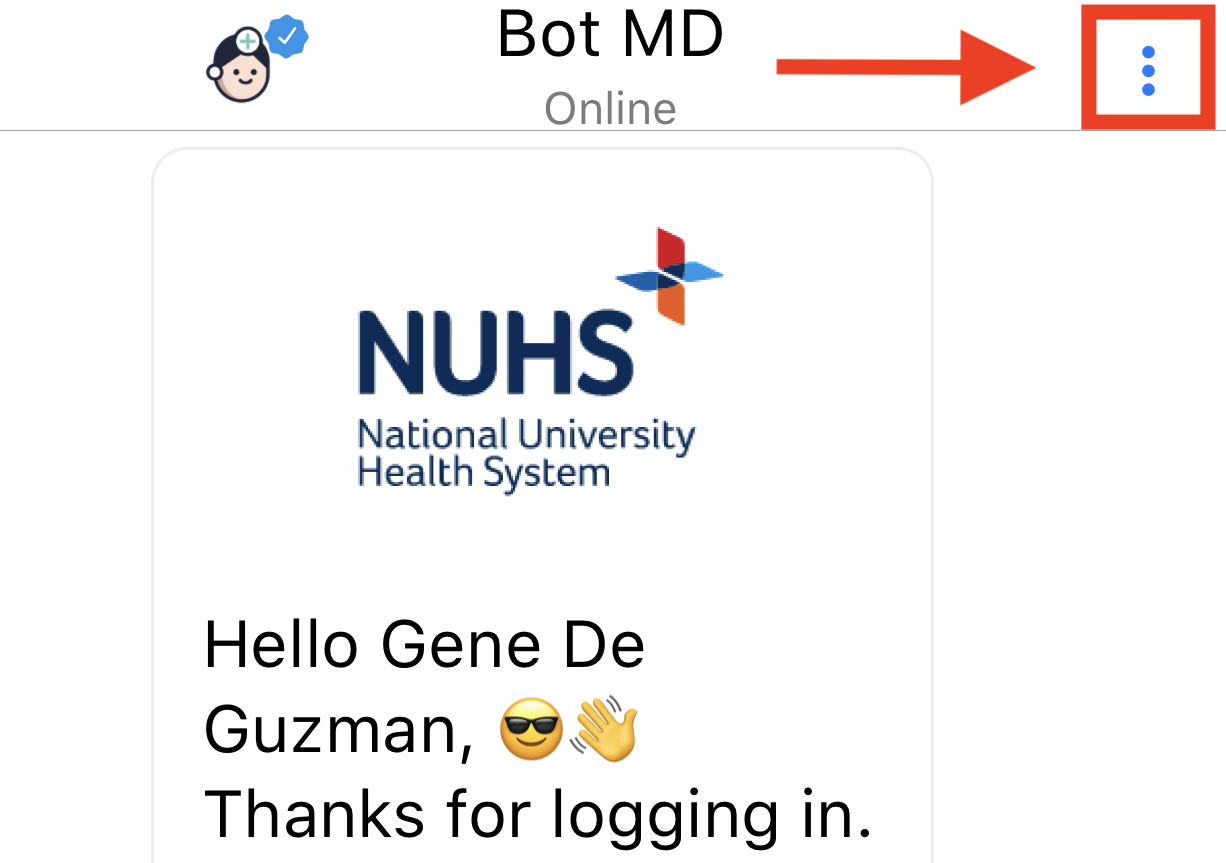
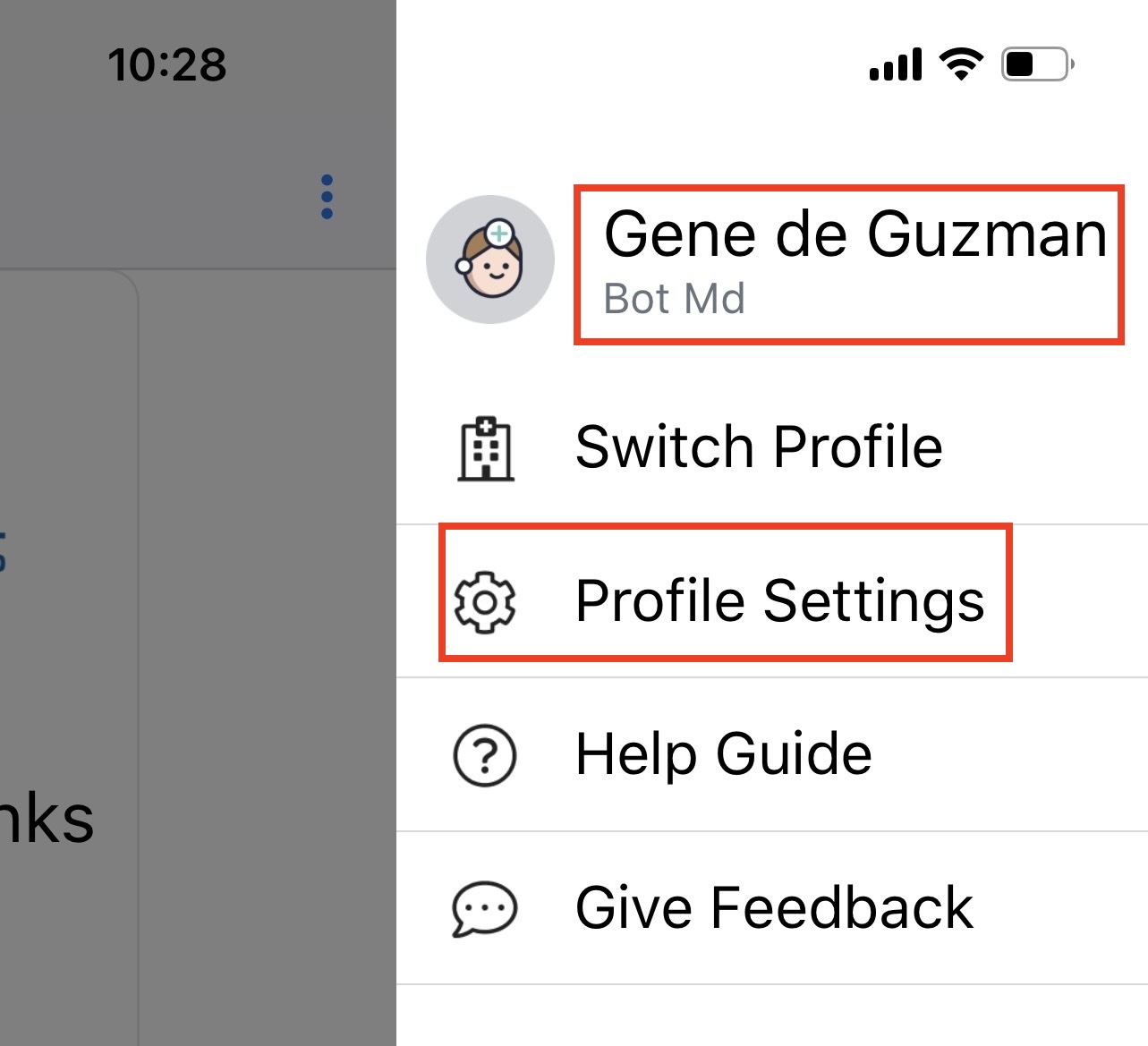
2. Tap on your profile (name) or on Profile Settings to enter the in-app profile settings section.
3. Your profile information is displayed.
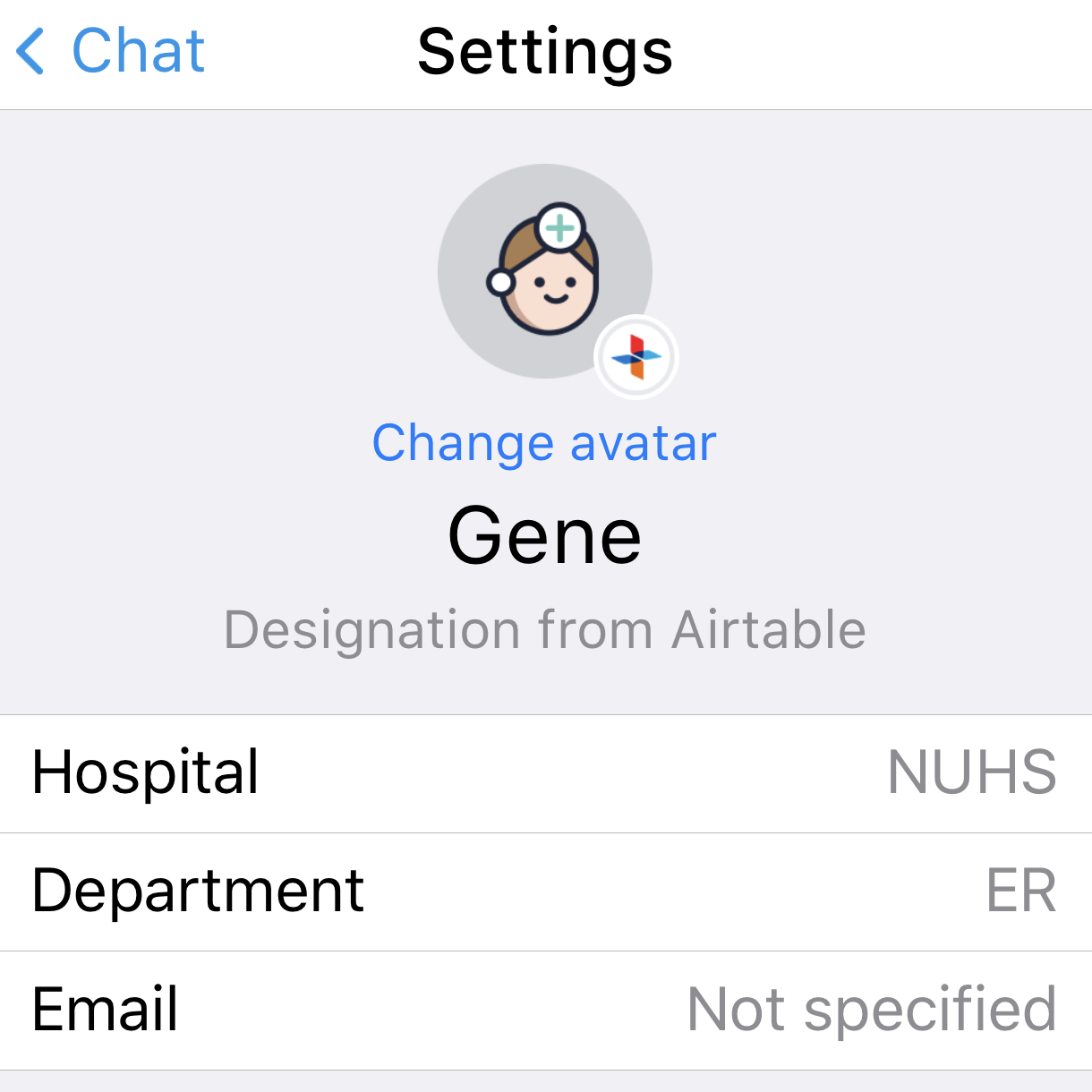
Note: You may notice that your Hospital, Department, Mobile Number and Email is not editable. By default, this information is provided to Bot MD by your hospital. and pulled from your hospital's active directory - your name, title, mobile number and department. These details can be changed by submitting a Profile update request to your institution via Give Feedback. For instructions on how to do this, click here.
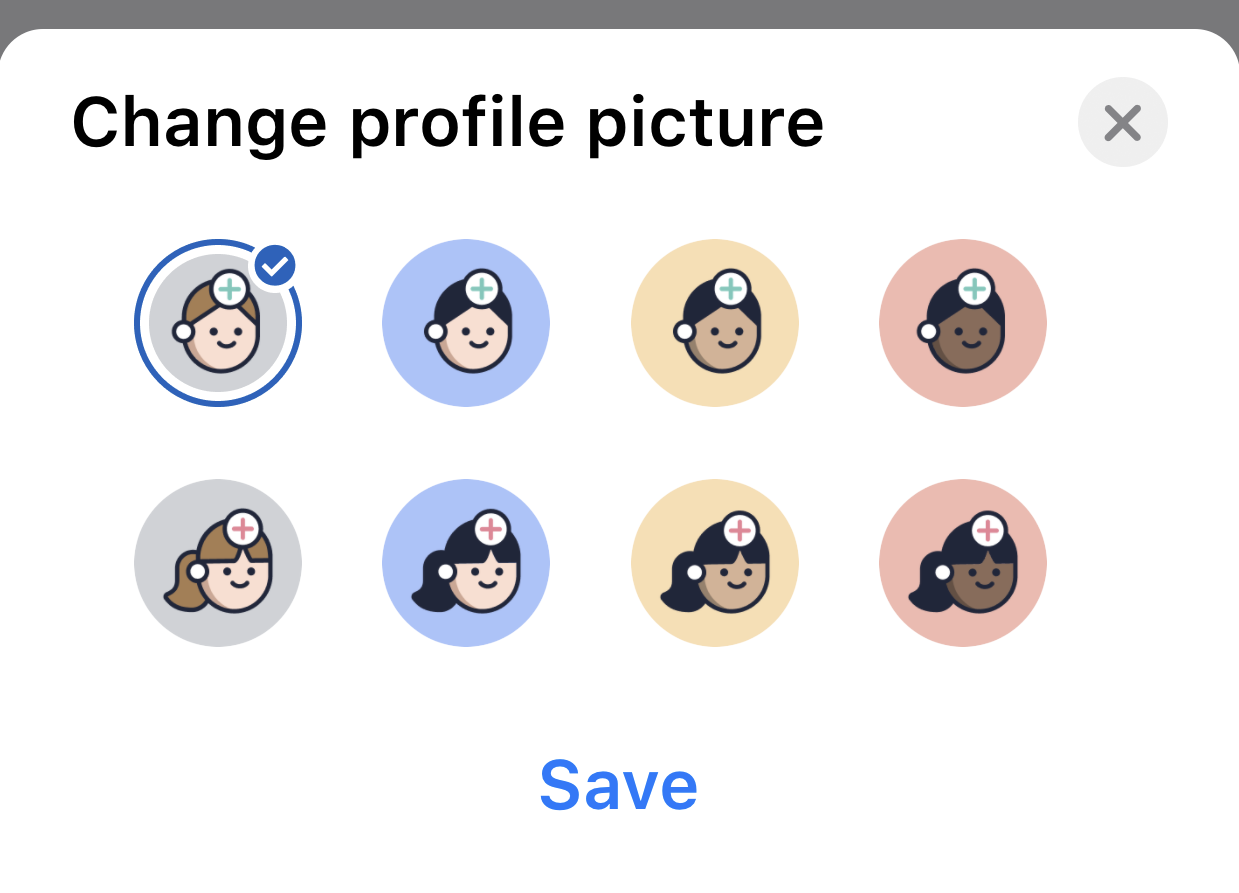
4. To change your profile avatar, simply tap on the image, select a new avatar and tap on save.
Instructions for Android Users
- Tap on the Settings icon in the Bot MD chat header to open the navigation drawer.
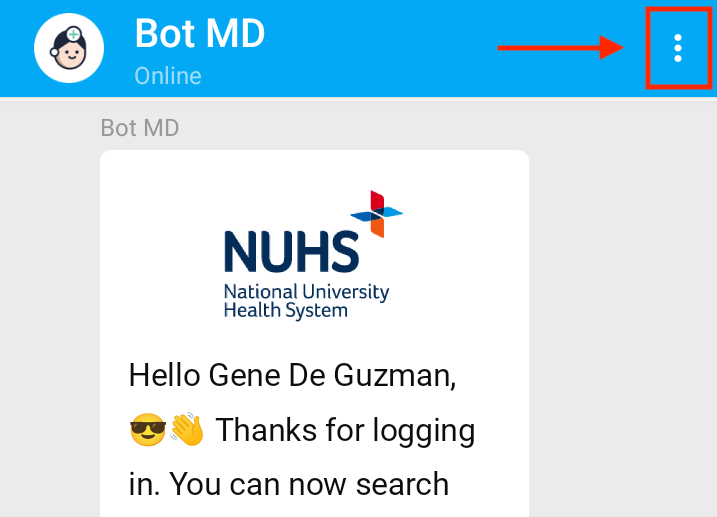
2. Tap on profile to enter the in-app profile settings section.
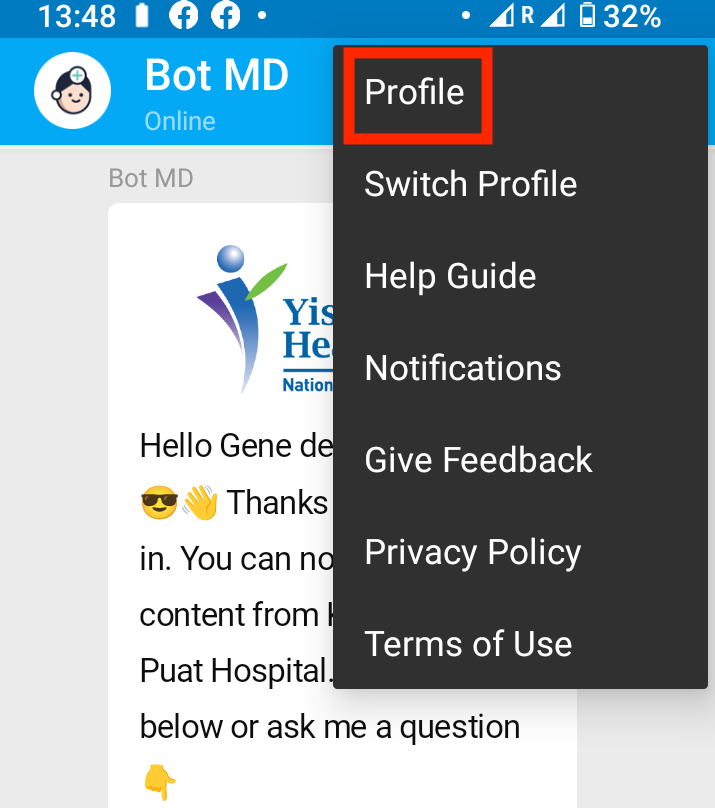
3. Your profile information is displayed
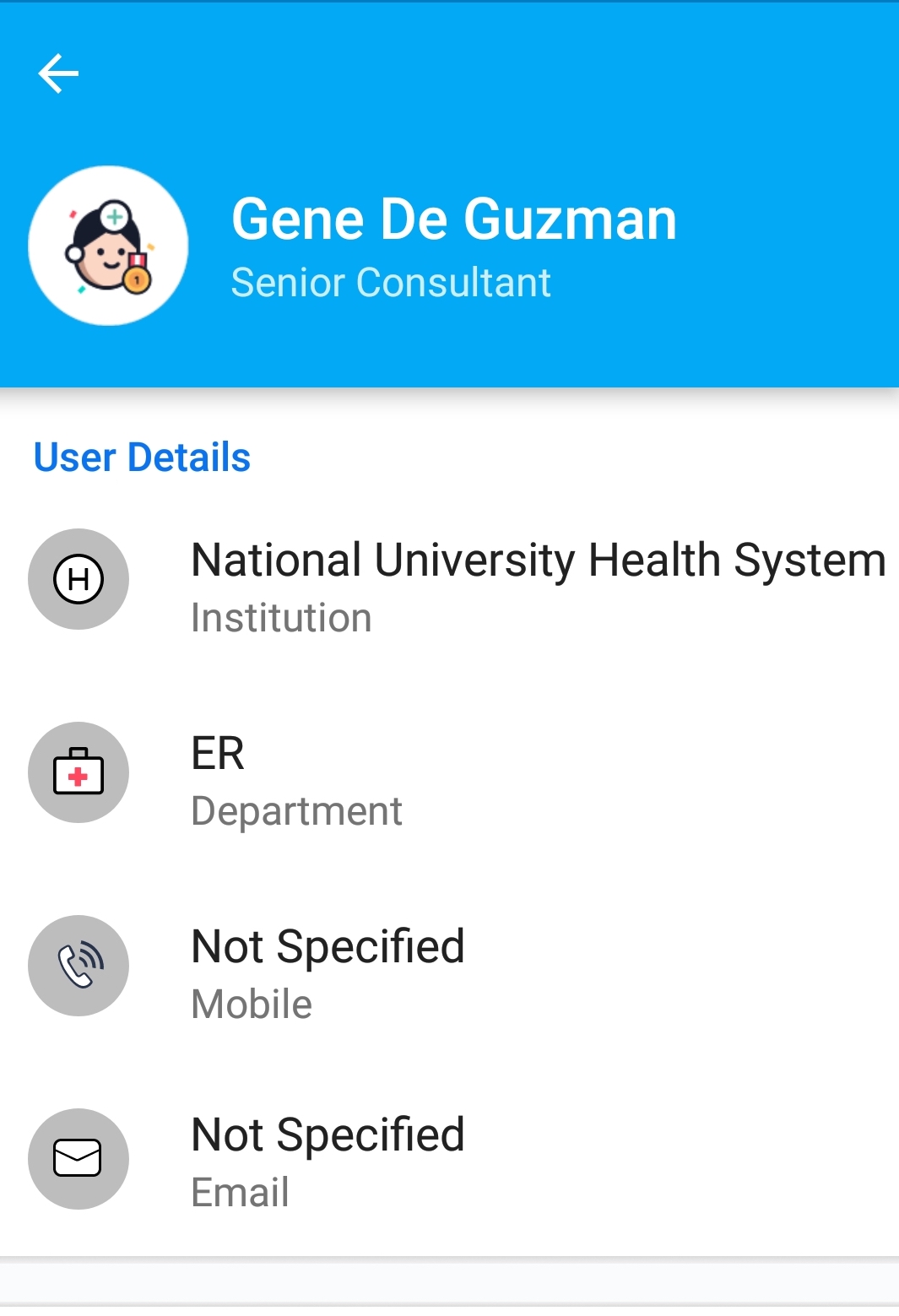
Note: You may notice that your Hospital, Department, Mobile Number and Email is not editable. By default, this information is provided to Bot MD by your hospital. and pulled from your hospital's active directory - your name, title, mobile number and department. These details can be changed by submitting a Profile update request to your institution via Give Feedback. For instructions on how to do this, click here.
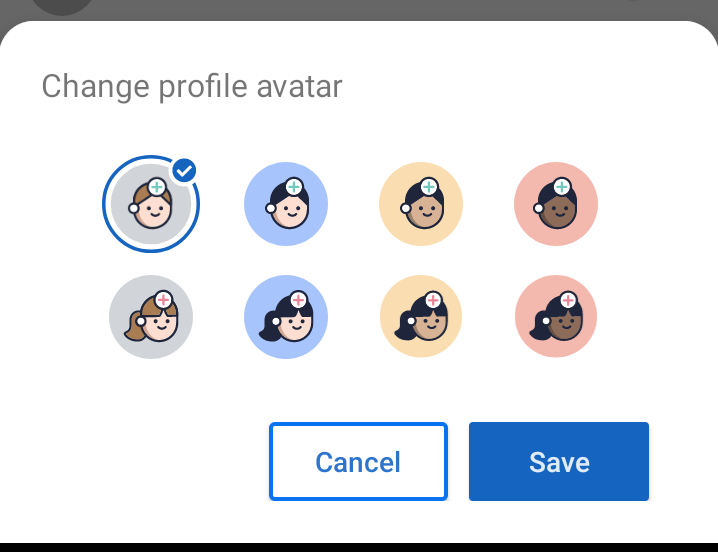
4. To change your profile avatar, simply tap on the image, select a new avatar and tap on save.
Other options you can access from in-app settings:
Help Guide - tap on this to access our online Help Guide.
Notifications (Android) - tap on this to enable/disable broadcast notifications
Give Feedback - tap on this to access our In-App Feedback & Support form.
Privacy Policy - tap on this to read how we use and protect your information.
Terms of Use - tap on this to read the Terms governing the use of the Bot MD app
Need to change your Name, Designation, Department or Phone Number? Click here for Instructions.